3D-View
The 3D view shows the entire scenery in 3-dimensional perspective. The 3D view dialog can be displayed on the screen parallel with CadnaB‘s main window. If necessary, arrange for the size of one or both windows accordingly or use the functionality „Arrange windows automatically“, see Arrange windows automatically.
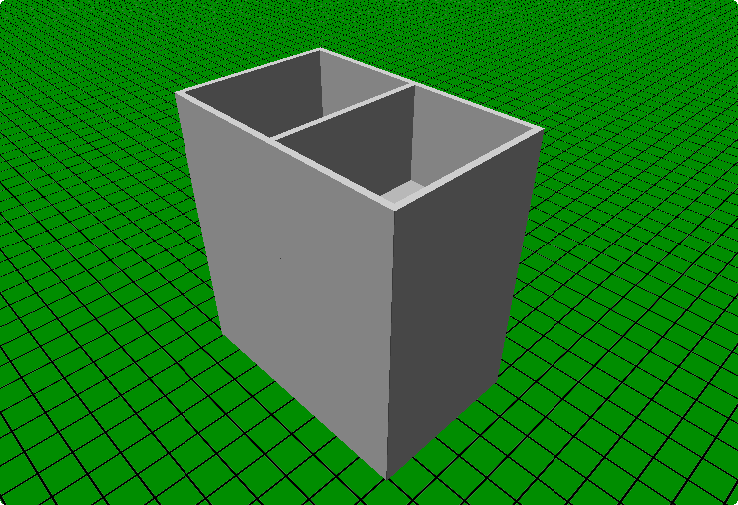
3-storey building, top floor ceiling hidden
3D Display Modes
The type of display within the 3D view depends on the currently selected mode (see Edit & Display Modes).
Modes „Project/Constructions/Usages/Noise level"
Displays the element surfaces using textures, when a construction is selected (otherwise: gray). Clicking on a element or a junction, the corresponding list item is highlighted. When looking from below, the floor is hidden.
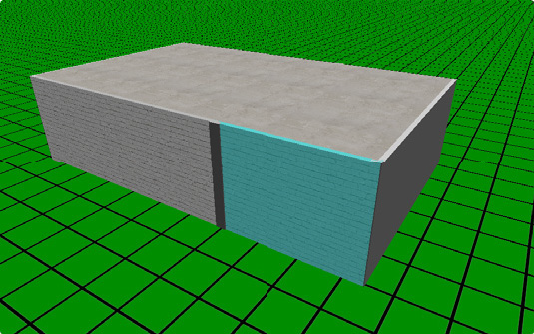 |
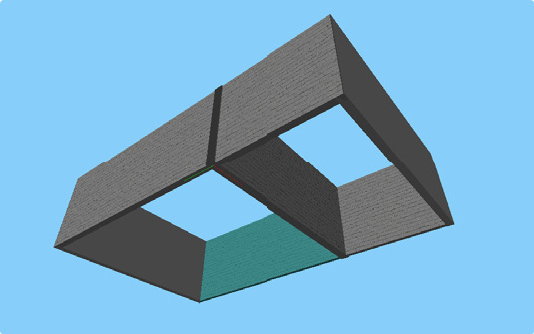 |
"Results" mode
With no room pair selected, the rooms are displayed in the wire-frame view. Selecting a room pair using the mouse in the "Results" mode, both rooms are shown shaded in 3D (sending room SR = red, receiving room RR = blue).
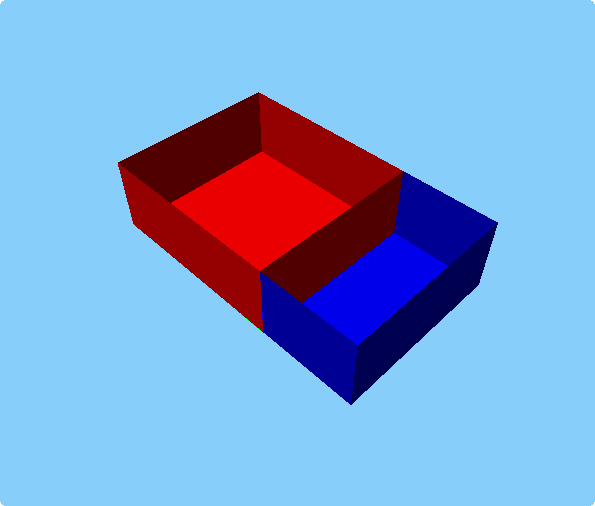 Room pair selected,back: SR, front: RR |
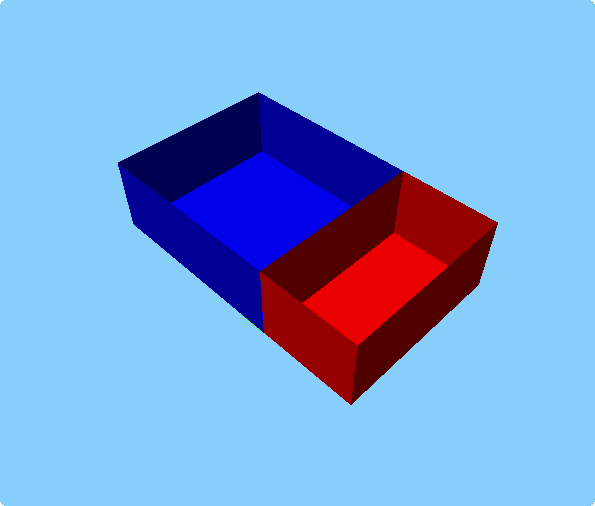 Room pair selected, back: ER, front: RR |
Global options of the 3D view
The following features are available:
Select a single object
Click the left mouse button. At the same time, the object line is marked in the "Project" (see „Project“ Mode) or "Constructions" (see „Constructions“ Mode) mode. At the same time, the object is highlighted in the 2D view and the corresponding floor is selected.
Select multiple objects
Click with the left mouse button while holding down the CTRL key (marking/highlighting as before, for all selected objects).
Hide/deactivate object
Click on an object with the SHIFT key pressed (reactivate via the check box in the "Project" mode, see „Project“ Mode)
Delete object
after selecting the object, press the DEL key. After confirmation, the object will be completely deleted from the project.
Rotate/move/zoom view
- Rotating the room/building: move the mouse while holding down the left mouse button
- Moving the room/building in x or y direction: hold down the CTRL key and left mouse button and move the mouse up/down or left/right
- Zooming the room/building: hold down the right mouse button and move the mouse forwards/backwards (alternatively: use the mouse wheel)
Further options
- F9 key: displays OpenGL information
- F11 key: Backface culling on/off. When on, the backside of objects is also rendered. This can be useful if e.g. a building is viewed upwards from a location below the basement.
Limitations
- Some objects are hidden in 3D (e.g. labels).
- Some objects are not visible in 3D (e.g. junctions with gray check boxes in "Project" mode).
- Bitmaps always use transparency in 3D (if any) and cannot be selected.
Note
If an error occurs when opening the 3D view, make sure that the graphics driver for your Windows system is up to date.