Generate Label
In „Project“ mode, labels are text frames that can be placed freely or with a reference to an object. The displayed text can be edited.
Placing a label on object
Click the symbol  on the toolbar and click in the 2D view on the room base, on an element or a junction. A label with the object‘s name is created in an adapted size.
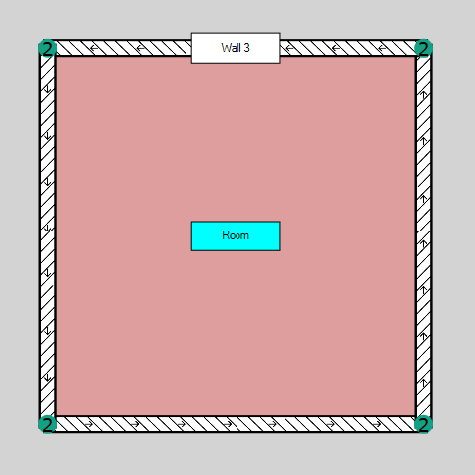
After selecting the Edit context menu command, the Label dialog opens (see Label). Alternatively, switch to the edit mode (via  ) and double-click on a point inside the text frame.
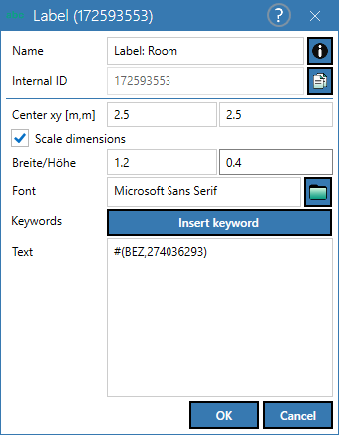
The text of the label contains a reference to the name of the referenced object.
For details on the dialog, see Label.
Placing a label at any location
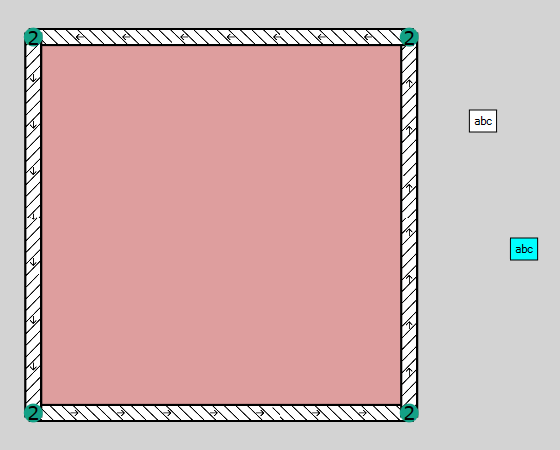
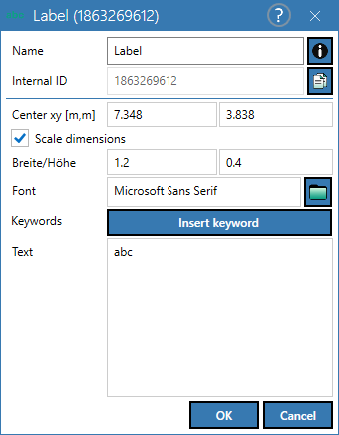
Click the icon on the toolbar and click anywhere in the 2D view while excluding any objects this time. In this case a standard label with the text "abc" is generated.
After selecting the Edit context menu command, the Label dialog opens. Alternatively, switch to the edit mode (via ) and double-click on a point inside the text frame..
Deleting labels
The following options are available to delete one or more labels:
-
deleting one or more labels in the 2D view:
- select using mouse click, multiple select with CTRL key pressed,
- alternatively: draw the rectangle holding don the mouse button (when drawing from the right all objects within and on the edge are selected, while drawing from the left only all objects within this rectangle are selected)
- Press the DEL key or select the Delete command from the context menu. After confirming the safety prompt, the objects are deleted.
-
delete one or more labels in the "Project" mode (see „Project“ Mode) from the object list:
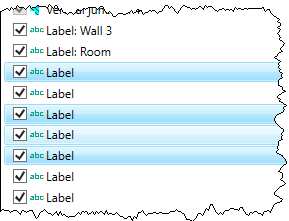
- select using the mouse, multiple select with CTRL key pressed or a sequence with SHIFT key pressed,
- Press the DEL key or select the Delete command from the context menu. After confirming the safety prompt, the objects are deleted.
-
and via the "Delete" button in the Labels table (see Object Tables).