„Results“ Mode
This mode shows the results of the last calculation.
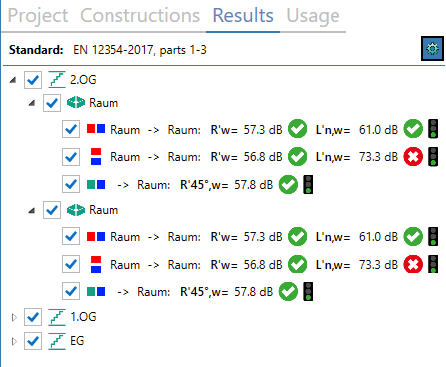
Results
The list follows the hierarchical CadnaB project structure and contains all rooms and the calculation results between the current room and each neighboring room for the selected evaluation parameters (see Configuration of calculation):
 horizontally, between rooms
 horizontally, outside → inside
 vertically, upstairs
 vertically, downstairs
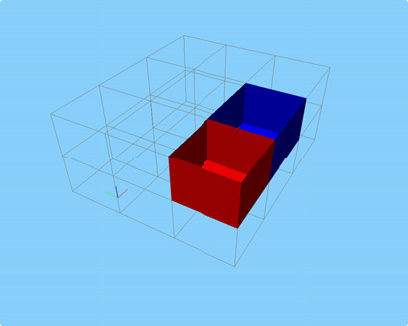
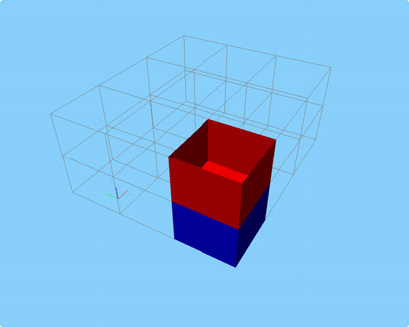
Sending room (SR) = red, Receiving room (RR) = blue
Diagonal room pairs or room pairs with a height offset in z-direction (different floor height / ceiling height) cannot be modeled in CadnaB.
Requirement met/not met
In addition, if a type of use (see Requirements Browser) has been selected for the respective room pair, it is displayed whether the requirement is met or not:
 requirement met
 requirement not met
 Evaluation parameters of the requirement and result do not match
Note
The room‘s designation can be edited for each room using the “Project” mode (see „Project“ Mode).
Traffic light


indicates what type of junction was used:
- Only the junction types listed in ISO 12354-1 were used in the calculation of this room pair (see Junction types from ISO 12354-1).
- At least one derived junction is used (see Derived Junction Types) or methods were used in the calculation that are not included in the set calculation standard in this way. The results should be used with caution.
- At least one flank is not taken into account in the calculation or an invalid junction has been detected!
OPTIONS
Standard
displays the selected calculation procedure/standard
 accesses the configuration of calculation (see Configuration of calculation)
List of results per room & room pair
A double click in each result line opens the dialog Results with the details of the calculation. The contents of the results dialog are described in subchapters depending on the standard (see Results Dialog (ISO 12354) and following).
Buttons
The following options are available:
- Update room pairs: After changing the room geometry (in "Project" mode, see „Project“ Mode) or the number of rooms, the calculation results displayed are no longer valid. This option enables the room pairings to be updated (without restarting the calculation at the same time).
- Start calculation: After updating the room pairs, the calculation can be started here (or by clicking
 in the toolbar).
 - Generate report: generates a calculation report in the "MS Word (*.docx)" format. Custom formatting of the report is not currently available, but the Word file can be customized afterwards.
The export of the report is adapted to the calculation method selected, for example, the spectral result tables are created only when using ISO 12354 according to the detailed model. According to DIN 4109, an overview of the requirements is added at the beginning of the report.
For an export of constructions, see section Construction data (*.docx).
3D-View
Opening the 3D view (see 3D-View) at the same time and arranging the dialog‘s location appropriately on the screen, the sending/receiving room pair selected in the result list gets highlighted (sending room SR = red, receiving room RR = blue).
 |
 |