Walls in 2D-Room View
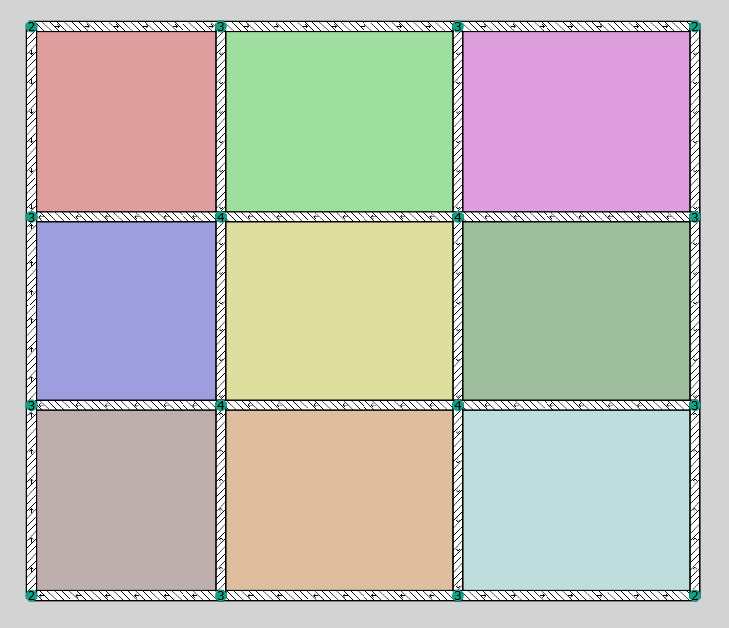
9 rooms in the 2D view
Object Appearance
The following information refers to the appearance of rooms, walls and junctions in the 2D view.
Rooms
The floor space of each room is colored individually. Since every room can be both, a sending and a receiving room, the direction of transmission cannot be derived from the coloring.
Walls
A distinction is made in the appearance of walls:
-
heavy walls: \(\qquad\qquad\)

-
lightweight walls: \(\qquad\)

In the case of heavy walls, the arrows show the direction of the geometry input (from first to last point).
Junctions
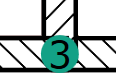
Junctions are marked by a filled circle, which shows the number of components coupled at the junction (= order of the junction).
The junction‘s appearance indicates the following cases of couplings between walls:
-
normal junction (directly coupled walls, default)
-
junction with elastic interlayer on one
 or more
 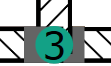 sides (see dialog Wall, see Wall)
 -
junction, decoupled on one
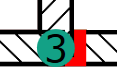 or more
 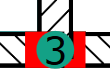 sides (see dialog Wall, see Wall)
2D Control Options
The following control options are available in the 2D room view:
- Zoom +/-: rotate the mouse wheel
- Move room: press mouse wheel and move mouse
- Open element/junction/room dialogs: double-click with the mouse on a wall, junction or the SR/RR room base