Construction Browser
The CadnaB construction browser shows all available constructions and their data. Existing constructions that cannot be changed or deleted by the user. However, new, user-defined constructions can be entered and the database can be expanded individually. User-defined constructions can be edited and deleted again.
Constructions cannot be selected for the calculation via the construction browser. To this end, close the construction browser and double-click on the element in the graphic in order to select a construction.
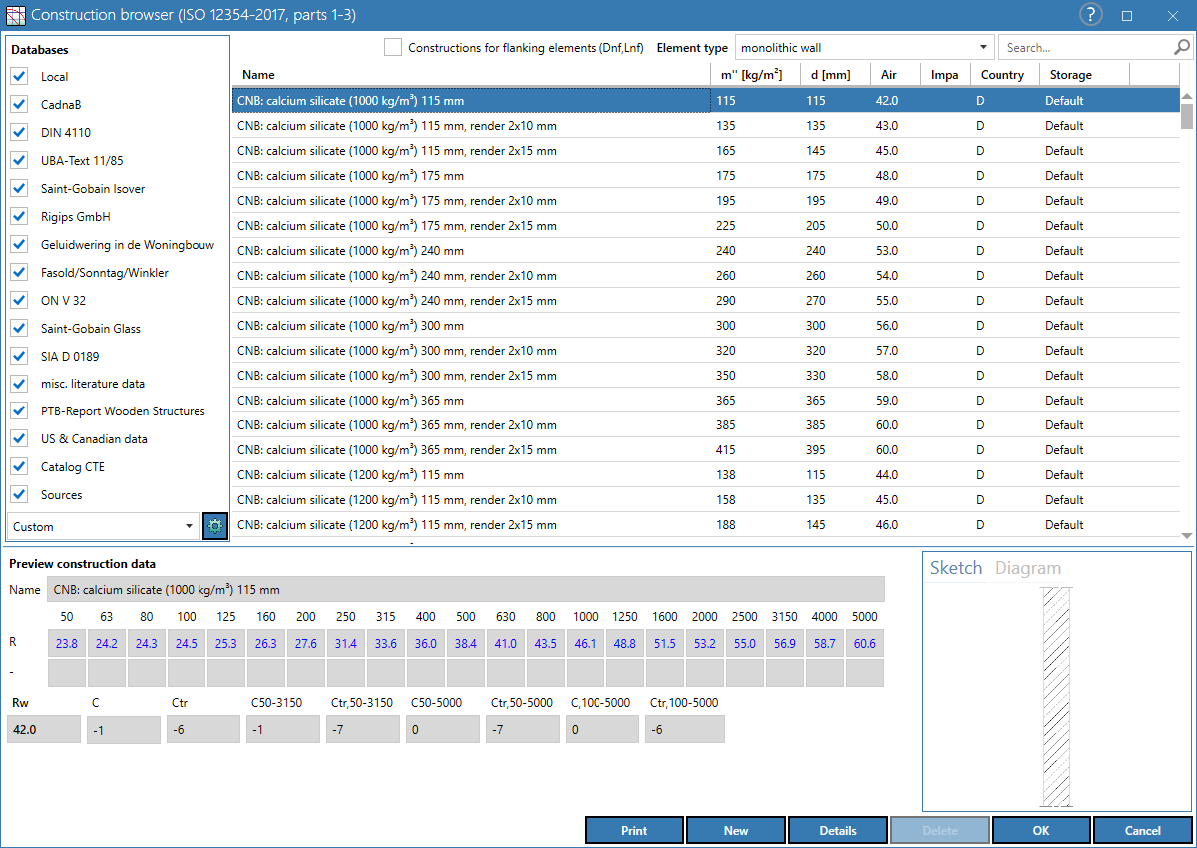
CadnaB construction browser
List of databases
The list shows all available databases containing constructions. Individual databases can be activated/deactivated via the respective control box. This updates the list of constructions.
CadnaB distinguishes between three types of construction databases:
-
Local constructions are only saved inside the current CadnaB project file
-
Global constructions are saved inside a separate file which can be accessed by multiple users at once. When referencing a construction from a global database a local copy is created automatically and used instead. Note: Global databases are loaded once when starting CadnaB thus if multiple users write to the same file, data loss can occur!
-
Default constructions are supplied and maintained by the DataKustik GmbH and are immutable.
Selection List
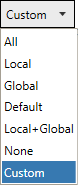
Groups of databases can be selected via the list field at the bottom of the list of databases:
Manage databases
Clicking on the  button opens the database management dialog for global databases. A database’s name and file path can be edited here.
 |
creates a new global database. The database will not be created until OK is clicked. |
 |
imports an existing database file with ending *.cnbdb |
 |
deletes the reference to the selected global database. The file is not deleted, it is only removed from **CadnaB** (only applies to the global database) |
Furthermore, construction data from other global databases or local CadnaB projects can be imported here. Each construction has a unique internal ID which is used to detect duplicates when importing the same construction multiple times.
List of Constructions
Based on the selected/existing databases, the construction list shows the current constructions in database order. The preceding abbreviation indicates the origin of the data record (if available, e.g. "FaSo ..." for origin from the database "Fasold/Sonntag/Winkler"). The list can be sorted by clicking the column header.
Option „Construction for flanking elements (Dnf,Lnf)“
After activation, the constructions displayed in the selected database(s) and for the selected component type (see below) are those whose flank transmission is described by Dn,f and/or Ln,f. If deactivated, only constructions based on separating component data are displayed.
List Box "Element type"
In addition to the “database” filter criterion (see above), the type of element you are looking for can be selected from the list box in order to limit the list of results.
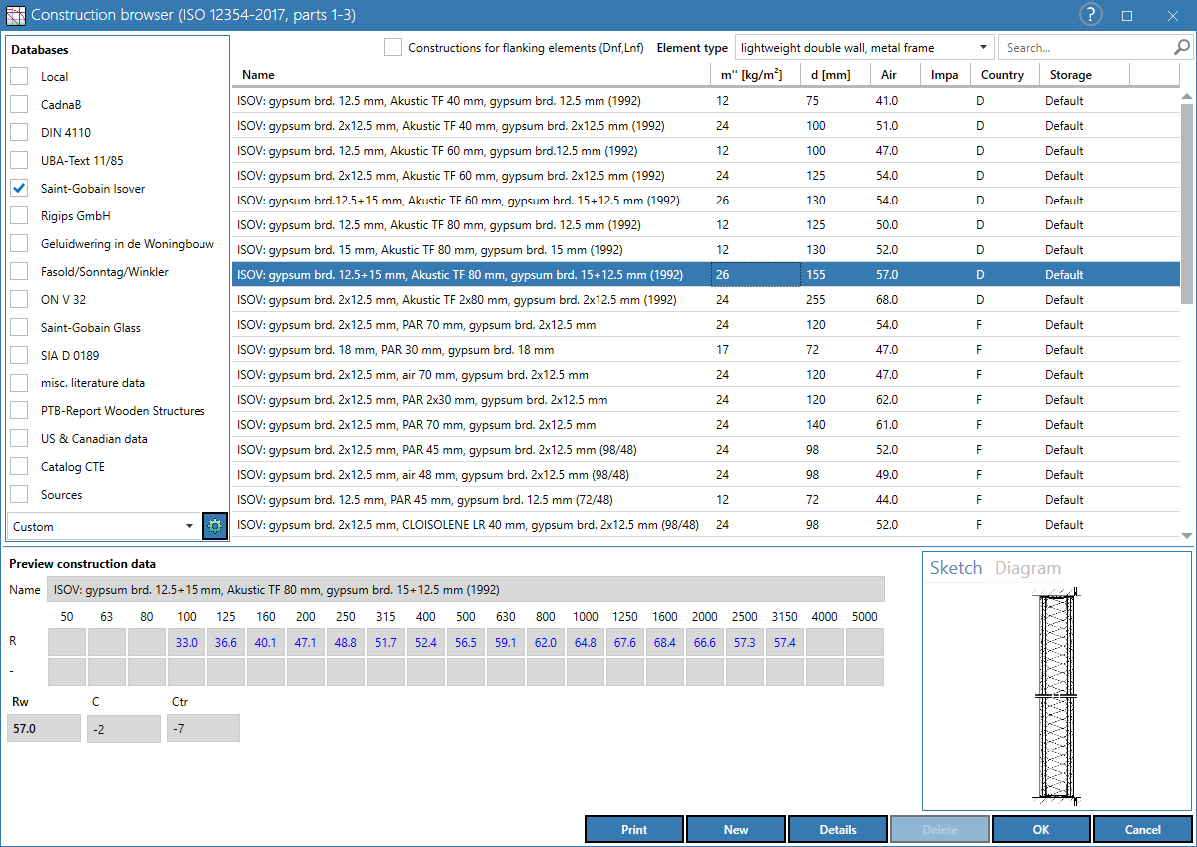
If - for example - "lightweight double wall" is selected with the database "Saint-Gobain Isover" selected at the same time, only the metal stud partition walls contained in this database are displayed in the construction list:
Note
Selecting “All” constructions is only available if the construction browser was opened via the main menu (Tables → Construction browser) because otherwise the list of element types has already been pre-filtered based on the object type.
Select/display construction
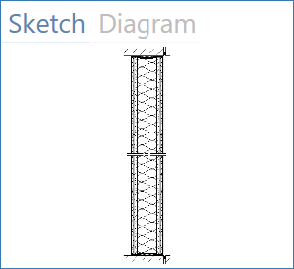
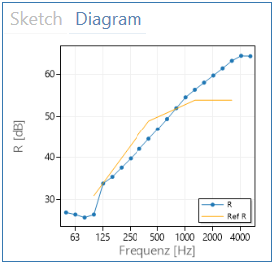
Click on a construction to display its airborne and/or impact sound data. At the bottom right of the dialog, either the construction drawing (if available) or the frequency diagram can be selected by clicking with the mouse.
 |
 |
The following data is also displayed:
- Third-octave spectrum of the sound reduction index R (dB) or normalized impact sound pressure level Ln (dB):
- Single number ratings (dB)
- Rw|Ln,w: single number ratings according to ISO 717-1 or -2
- Spectrum adaptation terms according to ISO 717-1 or -2
Further Diagram Options
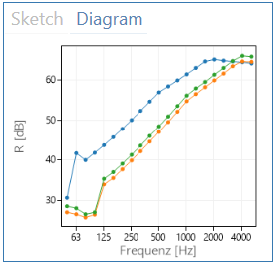
In addition, in case of multiple selection with SHIFT and/or CTRL key, all marked curves are displayed in the diagram. The function is only possible when using ISO 12354
 |
Search
In addition to the “Element type” list box, this input box enables a flexible search for constructions. The following operators are available for numeric conditions:
- match: \(=\) or \(==\)
- one-sided restriction: \(>\), \(>=\), \(<\), \(<=\)
- unequal: \(!=\) or \(\sim=\)
To start the search after entering a character string and/or condition, press the RETURN key. Examples:
| Element Type | Expression | finds ... |
| none (---) | calcium silicate | all constructions with “calcium silicate” in their name |
| none (---) | calcium silicate$+$1200 | all constructions with the designation "calcium silicate" and "1200" (e.g. density) |
| timber floor with wooden joists | SIA+timber | all constructions from the SIA database with the word “timber” in their name |
| none (---) | calcium silicate$+$d$=$240 or calcium silicate$+$d$==$240 | finds certain material and thickness (e.g. all walls with the designation "calcium silicate" and d$=$240 mm) |
| none (---) | calcium silicate$+$fc$<=$125 | analog for cutoff frequency (finds all calcium silicate walls with fc$<=$125 Hz) |
| none (---) | calcium silicate$+$m$>$500 | analogous for mass per unit area (finds all calcium silicate walls with m“$>$500 kg / m²) |
| none (---) | gypsum$+$d$!=$100 | finds all walls with "gypsum" and whose thickness d is not equal to 100 mm |
| none (---) | c$=$D | finds all constructions with country abbreviation D for Germany |
"New" button
After clicking on this button, data for a new, user-defined construction can be entered in the mentioned data boxes. For detailed information see Construction Data Dialog for ISO 12354 and Construction Data DIN 4109 Dialog for DIN 4109-2018. In case an entry from any of the default databases is currently selected the construction’s default values are preselected. In case a local or global construction is selected all values are copied to quickly clone an existing entry.
"Details" button
After selecting an individual construction from the construction list, further construction details can be displayed using the button (see Construction Data Dialog).
„Print“ button
Export of a Microsoft Word file in *.docx format, which contains the selected constructions including parameters. If available, the corresponding bitmap of the construction is also exported to each page.
To export all constructions used in the project, see section Construction data (*.docx).
Sort / Change column width
see Tables Menu