Multi-Select
With some commands, multiple selection (multi-select) of objects is possible. A distinction must be made here:
- multiple selection using keyboard and mouse
- multiple selection just using mouse
Multiple selection using keyboard + mouse (CTRL / SHIFT)
When using keyboard (CTRL / SHIFT) and mouse, the following options are available:
- Deleting several objects: Select the objects to be deleted - e.g. walls - with the mouse while pressing the CTRL key and then select the context menu command Delete. The objects are deleted after a safety prompt.
- Renaming several objects: Select the objects to be renamed with the mouse - e.g. junctions - while pressing the CTRL key and then select the context menu command Rename.
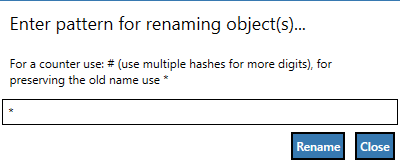
The following wildcards are available:
- #: generates a single-digit number
- ##: creates a two-digit number, etc.
- *: placeholder for the existing string (e.g. * ## is used to add a two-digit number at the end of the existing string)
- labeling several objects (using the existing name)
Multiple selection using the mouse only
Using just the mouse, the following options are available in the 2D view:
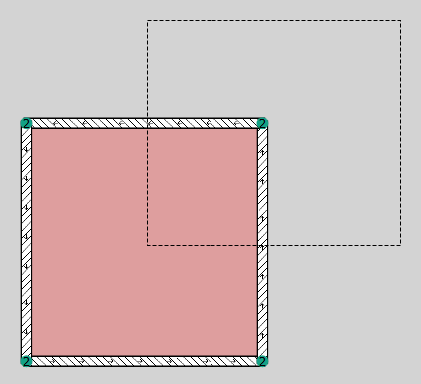
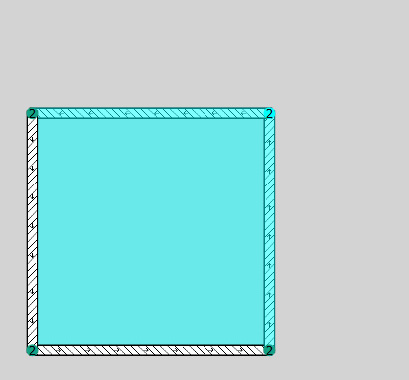
Marking objects starting from the right
Drawing a rectangle using the mouse starting from the right, marks all objects that are within or on the edge of the rectangle drawn.
 |
 |
 |
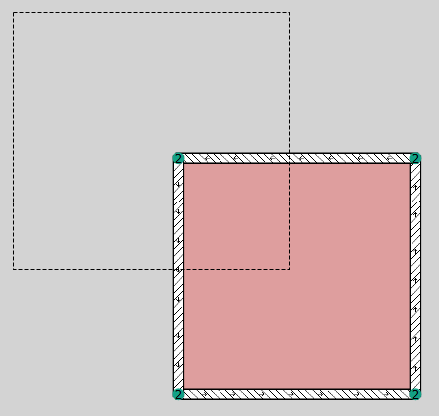
Marking objects staring from the left
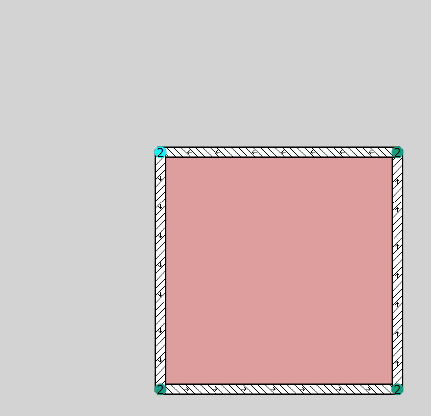
Drawing a rectangle using the mouse, starting from the left, only marks the objects that lie inside of the rectangle drawn (in the example below only the junction).
 |
 |
 |