Editing Facades
Radiating sources attached to facades can be edited conveniently in CadnaA using the command Edit Facades from the context menu of a building. This enables to enter point, line or vertical area sources attached to the building’s facade in the graphics.
Entering a building
- Enter the building with an arbitrary floor plan and a height of 10 m.
- Select the command Edit Facades from the context menu.
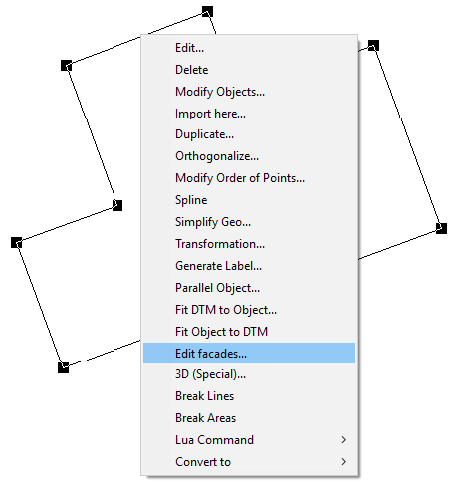
Dialog Edit Facades
Subsequently, the dialog Edit Facades is opened showing three different views of the building:
- above: front view of the entire façade (with all sections),
- bottom left: top view,
- bottom right: isometric.
On the in-plane front view of the facade sound sources can entered using a local coordinate system. The origin (0, 0) of this coordinate system is at the base of the first polygon point of the building (for all further dialog options, see Edit Facades in the CadnaA Reference Manual).
Edit first facade section
First, a window radiating sound shall be entered as part of the first facade section. Proceed as follows:
- Select the vertical area source (symbol:
 ) from the toolbar and draw a horizontal line - representing the top edge of the window - in the upper half of the first facade section.
Note
Zoom in  as required to enlarge the size of the displayed section.
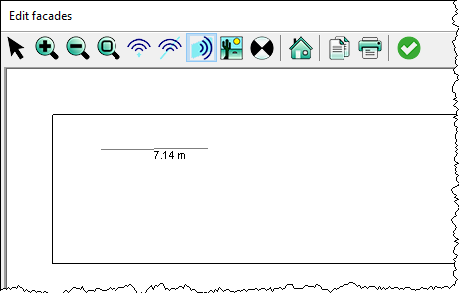
- Terminate the input procedure after having entered the second polygon point by clicking the right mouse button.
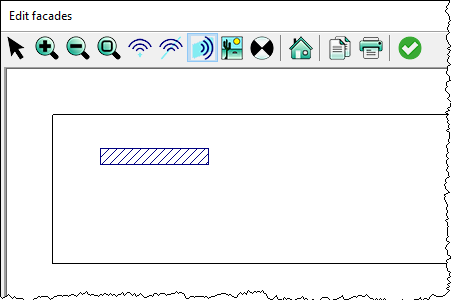
- While in the input mode, click the right mouse button on the top edge of the vertical area source.
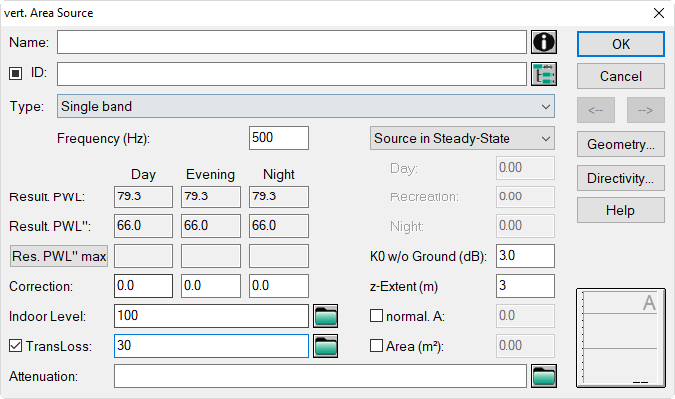
The dialog vert. Area Source is displayed.
- Enter into the box „z-Extent“ an appropriate value (in this example: 3 m).
The z-extent determines the position of the lower edge (positive distance from the top edge). The top edge has been entered graphically. In this example, the assumed height of the window is 3 m. Alternatively, you may enter the coordinates of the vertical area source via the dialog Input of Point (see Inserting Objects via the Keyboard).
- Activate on dialog vert. Area Source the option „TransLoss“.
- Enter an indoor level of 100 dB(A) and transmission loss (sound reduction index) of 30 dB.
Note
The directivity index K0 or DΩ resp. will be set to 3 dB automatically (see Entering a Sound Radiating Facade).
-
Close the dialog Edit Facades (by clicking symbol
 ) and press the key combination CTRL +3 to display the 3D-Special view.
 -
Move to a different viewing point - as required - to take a look at the vertical area source attached to the first facade section.
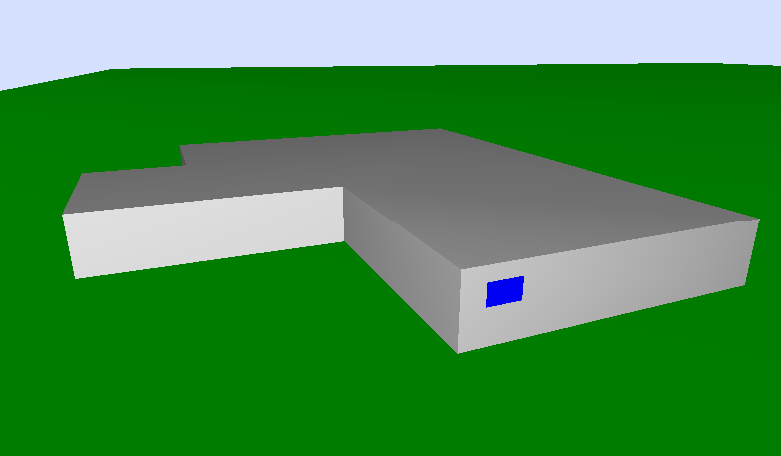
Building with a window in the first facade section
- Close the 3D-Special view and reopen the dialog Edit Facades.
Duplicating windows
- Click once the right mouse button on the top edge of the vertical area source and select the Duplicate command.

- On the dialog Duplicate - for example - enter the values as shown below.
Note
Since the emission of the first source has been specified already, the duplicates will have the same emission data.

After closing the dialog with OK there will be four copies generated with 4 m gaps in between.
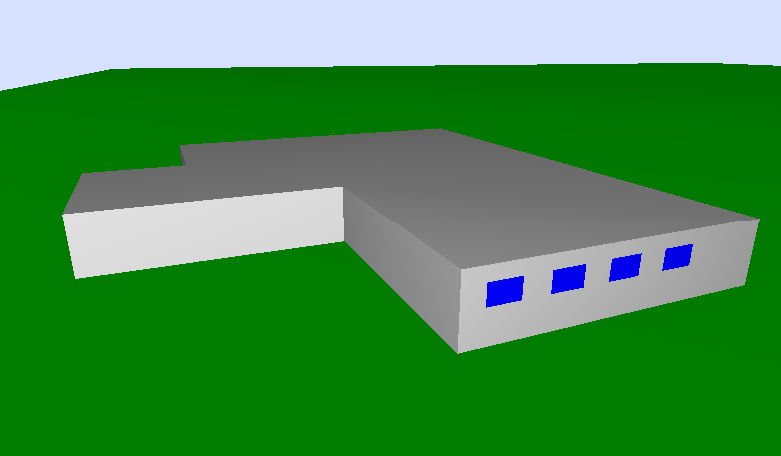
In order to enter point and line sources on dialog Edit Facades proceed in the same way. When moving the mouse pointer in the front view, its actual location will be displayed in the top view (plan view) and in the isometric as well. This enables to judge the current cursor position.
- To this end, select the type of source from the toolbar on dialog Edit Facades.
- Apply the insertion methods for entering point and line-like objects (see Inserting Objects using the Mouse).
Note
The key combination (left mouse button) & (CTRL-key) is also available on the dialog Edit Facades to duplicate a single object (see Copying Objects).
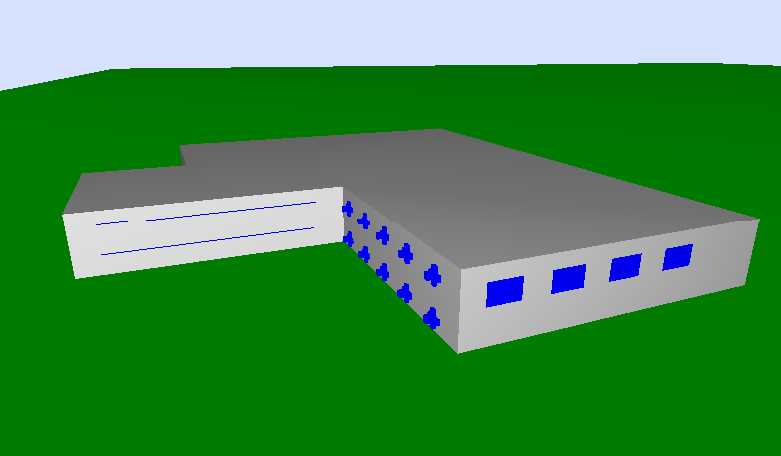
Building with point, line, and vertical area sourcesused for modeling building radiation
Note
Bitmaps can be addressed to each facade section and to the roof of a building which will be displayed on the 3D-Special view as textures (see Edit Facades in the CadnaA Reference Manual).