Copying Objects
In CadnaA, objects can be copied within the graphics and via the Windows clipboard. Copying within the graphics refers to a selected object, whereas to the clipboard, you may not only copy individual objects, but also the entire graphics or limits, or Section thereof, all at once.
Copying withinthe Graphics
Select the object to be copied. Then hold the mouse button down while moving the object to the location where you wish to position the copy. Before releasing the mouse button, press CTRL. This generates a copy of the selected object at the desired location.
- step 1: activate object
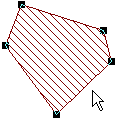
- step 2: keep mouse button and CTRL-key pressed
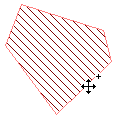
- step 3: Release mouse button before releasing the CTRL-key. The copy is generated.
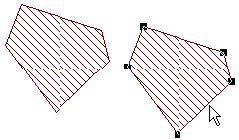
At the same time, a further data record, with the transformed coordinates, but otherwise unchanged data of the copied object, is inserted in the pertinent object list.
To generate a copy of an object and at the same time rotate it by 90° about the vertical or horizontal axis, press and hold the CTRL+SHIFT keys during copying. This generates an object of the same size and parameters as the existing object, with its centre at the same x or y coordinate as the copied object.
Copying to Clipboard
To copy objects to the clipboard, you can either
-
click the pertinent icon on the icon bar
 , or
, or -
select the Edit|Copy command, or
- press CTRL+C.
If objects have been copied to the Windows clipboard, you can paste them in a different Windows application for further editing by selecting the Edit|Paste command, or, alternatively, by pressing CTRL+V.
Copying a single Object
Select the desired object and execute one of the Copy commands.
Copying Sections
Use the Section icon  on the toolbox to define a Section.
To this end, position the mouse pointer on the upper-left corner of the desired Section. Then, with the mouse button held down, drag the mouse to the lower-right corner of the desired Section where you release the mouse button. The area is marked by a rectangle.
Now switch to the Edit mode, select the rectangle and press, e.g., CTRL+C. The selected Section is thus copied to the clipboard.
The rectangle marking the Section is neither copied nor printed, but only the objects lying within the Section.
Copying Limits
To copy the entire graphics with the defined limits, execute one of the Copy commands. During this procedure, none of the objects must be selected.