Edit Toolbar
The menu command Options|Edit Toolbar enables to edit the symbols displayed on the toolbar of the CadnaA main window and their sequence. Symbols offer short-cuts to distinct actions of the software.
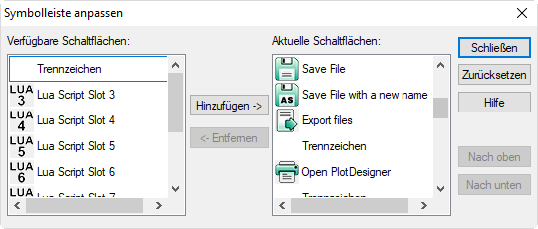
Dialog Edit Toolbar
List "Current Symbols"
This list displays the currently displayed symbols on the toolbar and their function.
List "Available Symbols"
This list displays the available symbols and their functions, which are not currently displayed on the toolbar.
Symbols for Lua scripts
Up to 10 symbols for Lua scripts (see Lua Scripting Language) can be displayed on the toolbar ("Lua script slot 1 .10"). These scripts will be run directly when clicking the respective symbol (i.e. without requiring to load the script first via Extras menu).
Furthermore, the INI file needs to be edited (see Installing CadnaA, INI-files in the manual „Introduction to CadnaA“). Insert a section „[Lua]“ and enter the filename of each Lua script including its file path, for example:
[Lua]
File1=D:\LUA_Projects\LUA_1.lua
File2=D:\LUA_Projects\LUA_2.lua
...
Buttons
<- Remove
After selecting a symbol from the list "Current Symbols" this symbol can be removed from toolbar by clicking this button.
Add ->
After selecting a symbol from the list "Available Symbols" this symbol can be added to the toolbar by clicking this button.
Restore
After clicking this button, the predefined toolbar is restored.
Move up / Move down
The sequence of symbols in the list "Current Symbols" that can be changed by clicking on these buttons. Click once on each of the two buttons to move the selected symbol stepwise to a new position. Alternatively, the symbol can be moved by clicking with the mouse while holding down the mouse button.
Close
Closes the Edit Toolbar dialog.