Modify Spectrum
Using the options on this dialog, the input spectrum be changed.
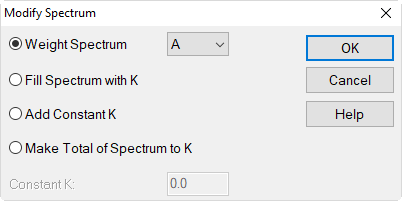
Dialog options
Weight Spectrum
This option offers to subsequently change the weighting of the entered spectrum. The present selection on the dialog Spectrum for the weighting, however, remains unchanged. Selecting a different kind of weighting on the Modify Spectrum dialog results in a conversion of the numerical values and thus changes the input spectrum.
Via the list box different kind of weightings can be applied to the spectrum (A,B, C, D) or being removed from the spectrum (-A, -B, -C, -D).
Fill Spectrum with K
writes the entered value K to each frequency band
Add Constant K
adds the entered value K to the current value.
Make Total of Spectrum to K
Adds a constant to each frequency band value so that the resulting total level, weighted as specified on the edit dialog, equals the value of K.
Constant K
value in dB
Example for „Weight Spectrum“
Proceed as follows:
- Open the Sound Levels (local) library via the Tables menu.
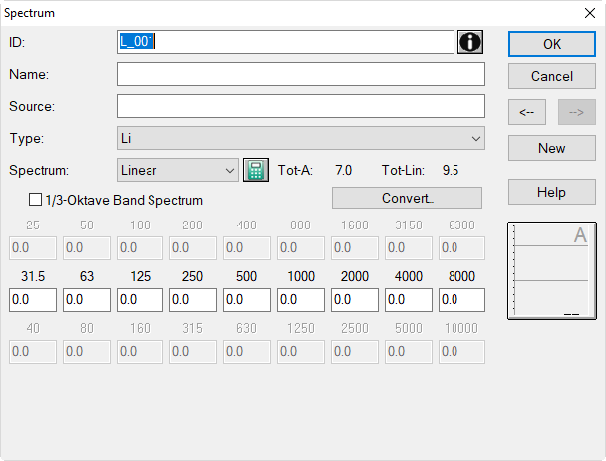
- Insert a new row via the table‘s the context menu and open the dialog Spectrum by a double-click into the new row.
-
Click the calculator symbol

-
Select "option „Fill Spectrum with K“ and enter a value of 55 for the constant K.
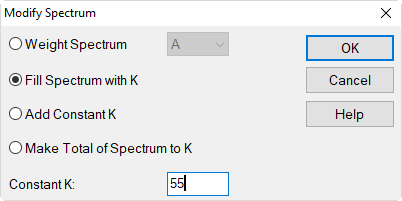
- Click OK.
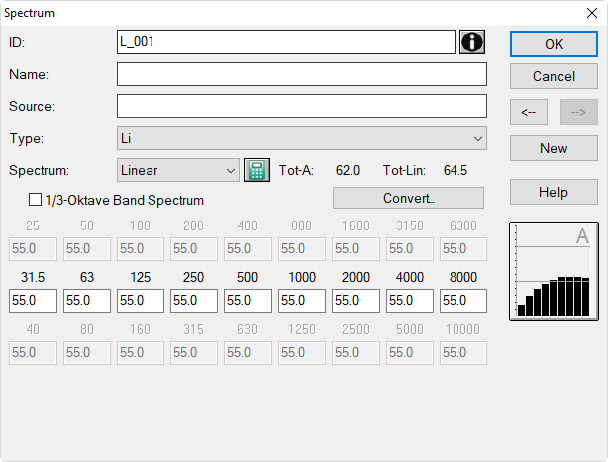
Now, the test spectrum has a the value of 55 dB in each frequency band from 31.5 Hz to 8000 Hz. Since the spectrum has 9 valid frequency bands the unweighted (linear) total level „Tot-Lin“ is:
Li, sum = (55 + 10 * lg 9) dB = 64.5 dB
The total A-level „Tot-A“ is:
| 31.5 | 63 | 125 | 250 | 500 | 1k | 2k | 4k | 8k | |
|---|---|---|---|---|---|---|---|---|---|
| Li,oct | 55 | 55 | 55 | 55 | 55 | 55 | 55 | 55 | 55 |
| A-weight. | -39.4 | -26.2 | -16.1 | -8.6 | -3.2 | 0.0 | 1.2 | 1.0 | -1.1 |
| LiA,oct | 15.6 | 28.8 | 38.9 | 46.4 | 51.8 | 55.0 | 56.2 | 56.0 | 53.9 |
Changing the Weighting
- Now, change the weighting from „Linear“ to „A-weighted“ either
- by pressing the A key with the focus on the list box „Spectrum“ or by selecting „A-weighted“ from the list box.
Subsequently, the A-weighted spectral levels are displayed. Note that the entered spectrum itself has not been changed by this change in weighting.
Note
Nevertheless, it is recommended to select the proper weighting before entering a frequency spectrum.
Correcting for a wrong Weighting
In case an incorrect setting was used when values were entered, the spectrum does not need to be deleted and re-entered. In order to generate the correct numerical values use the features on the Modify Spectrum dialog.
In this example it is assumed that entered test spectrum has an A-weighted level of 55 dB(A) per octave band - rather than a linear one.
Proceed as follows:
- First, close the dialog Spectrum in order to display the table of the local library Sound Levels.
- Insert via the table‘s context menu a new row after the spectrum L_001.
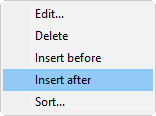
- Click once into the row containing the test spectrum L_001 and press the key combination CTRL+C.
- Click once in the new row and press the key combination CTRL+V.
By this the test spectrum L_001 is pasted to the new row.
- Double-click the new row and rename the spectrum in „test spectrum 2“ with the new ID L_002.
-
Click the calculator symbol
on the Spectrum dialog. -
Select the option „Weight Spectrum“ and then the option „-A“ from the list box.
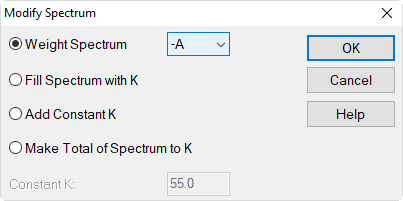
Dialog Modify Spectrum: inverting the A-weighting
- Click OK to subtract („minus A“) the A-weighting from the input spectrum and to close the dialog.
Note that the selection „Linear“ on the corresponding dialog Spectrum remains unchanged.
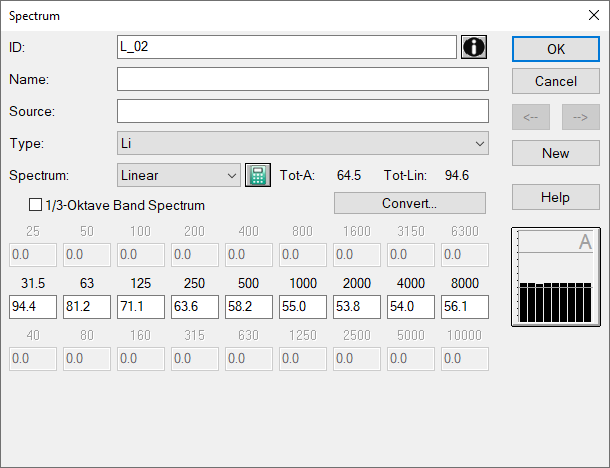
Dialog Spectrum: after subtracting the A-weighting using „-A“
Note
When selecting a distinct weighting on dialog Modify Spectrum, however, causes a change of the numerical values and consequently changes of the spectrum.
- Now, switch the selection for „Spectrum“ to „A-weighted“.
The modified spectrum now shows - as was intended - a level of 55 dB(A) in each octave band.
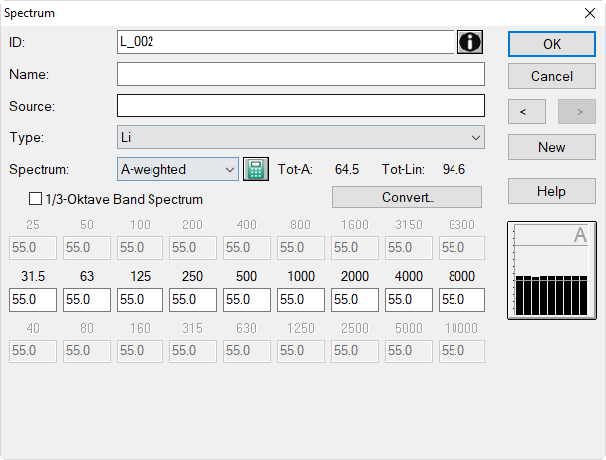
Spectrum with a level of 55 dB(A) per octave
Switch weighting without changing values
Instead of selecting a different weighting via the dialog Modify Spectrum and in order to leave the values unchanged, you may also switch to a different weighting directly on the Spectrum dialog. When doing so, hold the SHIFT key down.
Example
- Open the dialog Spectrum for the „test spectrum 2“ having the ID L_002.
- Hold down the SHIFT key and select from the list box „Spectrum“ the option „linear“.
The setting is changed to „Linear“ without altering the spectrum values. So, the original spectrum L_001 has been restored.
Switch weighting in table without changing values
Use an exclamation mark going in front of the weighting descriptor to switch the weighting within the table Sound Levels without changing the shown values.
Example
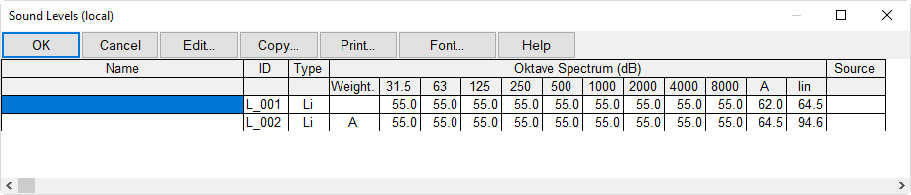
Enter, for example, in the column „Weight.“ of a spectrum the expression „!A“ to switch to the A-weighting without changing the values. A linear weighting is achieved by entering just an exclamation mark.
Note
This syntax is available also on the dialog Change Column|Replace Strings.