Batch Mode
The batch mode in CadnaR enables automatic calculations of several projects one after the other. This is particularly relevant with long-lasting calculations or when several variants - also in several project files - have to be calculated.
Note
Note for CadnaA users: In contrast to CadnaA, the batch calculations in CadnaR are not controlled by a local text block, but dialog settings. Nevertheless, after a batch calculation, the settings for the batch calculation are also saved in CadnaR in the local text block CNRBATCH (menu Tables|Libraries (local)|Text Blocks, see Text Blocks (local)).
There are three procedural steps:
-
Select the batch directory
-
Select the type of batch calculation
-
Start the batch calculation
Selecting the batch directory
Use this command on the Calculation menu to select a batch directory or create a new directory to be used as a batch directory.
CadnaR generates an IN and an OUT folder inside the batch directory. All projects that are to be calculated in batch mode must be saved or copied to the IN folder within the selected batch directory.
Selecting the type of batch calculation
By selecting this command, the Batch Calculation dialog is displayed.
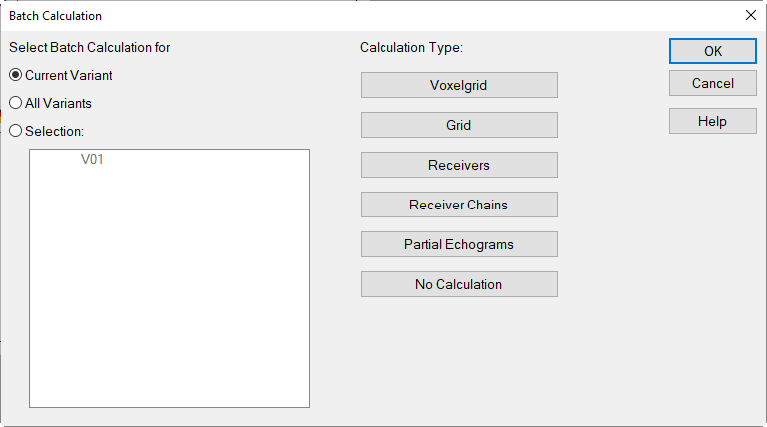
The required settings must be made in this dialog for each project file that is to be calculated in batch mode. Then save/copy this project file into the IN directory.
Dialog options
Select Batch Calculation for ...
For each CadnaR file to be calculated in batch mode, the current, all or a selection of variants (see Variants) can be selected. The currently selected variant is used by default.
Calculation Type
The following types of calculation are available for batch calculations:
- Voxelgrid (VOX)
- Grid (RAS)
- Receivers (IMM)
- Receiver Chains (IPK)
- Partial Echograms (TEG)
- No Calculation (-)
Clicking a calculation type button selects this type for the variant(s) currently selected in the selection list. After selecting a calculation type, a text marker is placed in front of the short description of the respective variant. The abbreviations are listed above in parentheses.
Just a single calculation type can be selected for each variant, not a combination of types. With "no calculation" a calculation type previously selected can be deselected.
Starting Batch Calculation
A batch calculation in CadnaR can be launched in two ways:
Start by menu command Batch Mode
- Start CadnaR and select the Batch Mode command in the Calculation menu.
An active batch mode is indicated by a check mark in front of the menu command.
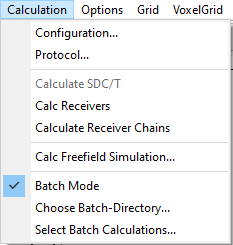
Batch Mode activated
After a short interval, CadnaR loads the first file from the IN folder of the CadnaR batch directory and calculates it in the background. When the calculation is terminated, the file in the IN folder is deleted and written to the OUT folder of the CadnaR batch directory. This occurs for all files in the IN folder. The calculated result files can be loaded from the OUT folder.
Start with a separate program link
Alternatively, a distinct program link can be created to start the batch mode. To achieve this, proceed as follows:
- Duplicate the existing CadnaR program shortcut on your desktop.
- Select the Properties command from the context menu of the program link.
-
Add at the end of the "Target" line, the following:
<space>/batch=1
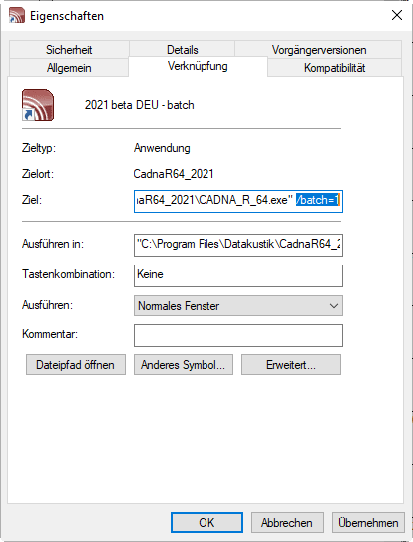
- Close the dialog with OK.
The batch calculation can then be started by double-clicking on this program link.