Variants
Variants enable to toggle different states of a project by referring to the group structure. The groups used for defining variants may result from group definitions generated manually (via menu Tables|Groups) or from groups defined using the ObjectTree (via menu Tables|ObjectTree|Definition).
Besides the generation of groups (see Groups), already offering an extremely flexible tool for toggling between different project states, the variants making use of the groups increase the efficiency when managing projects even more (menu Tables|Variants).
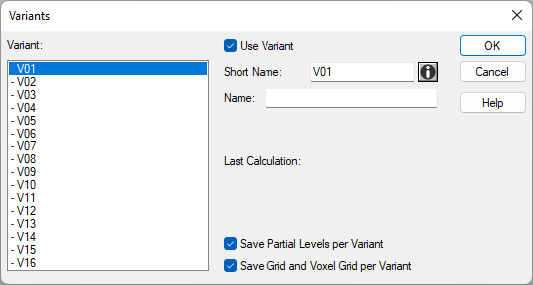
Dialog Variants
Dialog options
Variants
Up to 16 variants can be used in a single file. Select a variant from the list as required by a mouse click onto its name. In the list, deactivated variants are marked by a preceding minus sign.
If more than a single variant is defined, the calculation of the level at receivers (see Receiver) may occur for all variants, or for a selection of variants by selecting the command Calculate Receivers (see Calculate Receivers) from the Calculation menu.
Option „Use Variant“
By activating this option, the respective variant will be listed in the list box for variants on the CadnaR main window and as a separate column in the table Groups. The activation / deactivation of a variant can also be done by double-clicking on the entry in the list box.
Short Name/Name
The short name is used in the list box for variants on the CadnaR main window. Consider the limited length due to the list box’ dimensions. The name can, however, consist of a longer string.
Memo-Window
After clicking the  icon further information can be entered on the memo-window.
Last Calculation
The time of calculation of the respective variant is displayed after a calculation.
Option „Save Partial Levels per Variant“
By default, this option is enabled for all variants (V01..V16). In this case, the Partial Levels are saved in the CadnaR file for all active variants. If this option is deactivated, the Partial levels will be calculated and saved for the selected variant only.
Option „Save Grid and Voxel Grid per Variant“
By default, this option is enabled for all variants (V01..V16). In this case, the grid or voxel grid is saved in the CadnaR file for all active variants. If this option is deactivated, the grid will be calculated and saved for the selected variant only.
To calculate the grids of variants, see Calculating at Receivers later in this chapter.
Example
Example
Path: Examples/9_5/Variants_1.cni
For this example a file containing a factory hall is used.
Open the dialog Variant from the Tables menu.
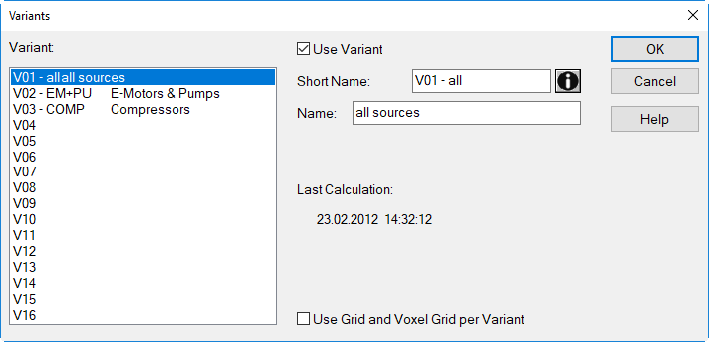
In this example the following variants have been defined:
- V01 (all sources active)
- V02 (only electric motors and pumps active)
- V03 (only compressors active)
Open the dialog Groups from the Tables menu.
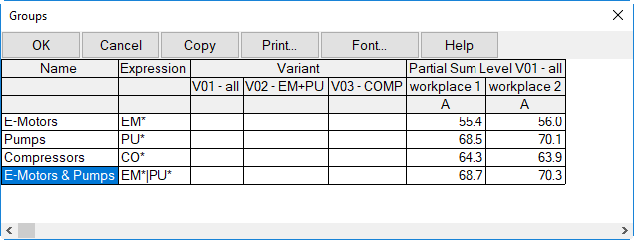
There are four groups with the following patterns („expression“):
| Group Name | Expression | Remarks |
| electric motors | EM* | includes all electric motors |
| pumps | PU* | includes all pumps |
| compressors | CO* | includes all compressors |
| electric motors & pumps | EM*|PU* | includes all electric motors and all pumps |
Moreover, for each group the partial sum level at all active receivers is displayed.
Example
Path: Examples/9 _2/Variants_2.cni
From the table Groups it is obvious that the variant’s short names are used as column headings.
- Define the activation status for each variant by entering a plus (+) or a minus sign (-).The signs have the following meanings:
| Sign | Remarks |
| + | This group is activate in the present variant. |
| - | This group is deactivate in the present variant. |
| blank | This group is neither activate, nor inactive in the present variant. |
- Enter the signs as shown in a following table:
| Group | Expression | Variant | ||
| V01 - all | V02 - EM+PU | V03 - COMP | ||
| electric motors | EM* | + | + | - |
| pumps | PU* | + | + | - |
| compressors | CO* | + | - | + |
| electric motors & pumps | EM*|PU* | |||
Note
Activate and deactivate groups for variants always via the table Group and not on the respective dialog Group. Changing the activation status via the dialog Group, just the variant currently selected will be concerned (and no other variants).
The following types of activation have now be defined by these settings with regard to the variants V01 to V03:
- variant V01: All types of sources are active.
- variant V02: Only the electric motors and the pumps are active. The compressors are deactivated.
- variant V03: Only the compressors are active. The electric motors and the pumps are deactivated.
- In all three variants the combine group „electric motors & pumps“ are not concerned when toggling variants.
Selecting a variant
- Close the table Groups.
- From the symbol bar, just one of the active variants can be selected.
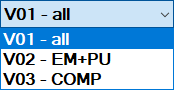
Take into account that the results presently shown are not valid at this time since no calculation has been launched yet.
Objects which are deactivated in a variant are displayed on the screen using the display options of deactivated objects (see Appearance).
Calculating Variants
When calculating variants, the calculation at receivers differs from the grid and voxel grid calculation.
Calculating at Receivers
When clicking the pocket calculator symbol  on the symbol bar just the selected (active) variant will be calculated. By using the command Calc from the Calculation menu, however, enables to calculate either the selected variant, or all variants, or a specifiable range of variants.
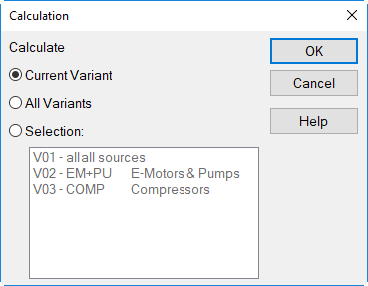
Dialog Calc from the Calculation menu
On the dialog Groups (from the Tables menu) just the results of the variant selected when starting the calculation are shown, though that all variants have been calculated in parallel. The same restriction applies to the table of partial levels at receiver points and to the the table Partial Level on the Tables menu.
Grid and Voxel Grid Calculation
Provided the option "Save Grid and Voxel Grid per Variant" (Variant dialog) is active and several active variants exist, selecting the command Calc Grid (Grid menu) or the command Calc Voxel Grid (Voxel Grid menu) displays a dialog for the selection of variants to get computed:
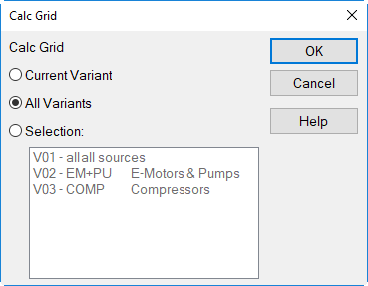 |
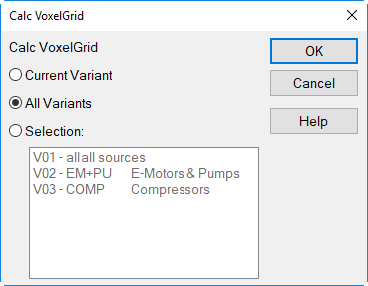 |
| Calc Grid dialog (Grid menu) | Calc Voxel Grid dialog (Voxel Grid menu) |
In this case, just the grid or voxel grid of the current variant, or the grid or voxel grid of all variants, or those of all selected variants can be calculated.