Connect Lines
This command enables to connect sections of line-like objects of the same object type into a single object by transferring the relevant parameters of the selected section to neighboring sections.
When connecting lines specific conditions may be defined. Activate the respective polygon section with the right mouse button and select the command Connect Lines from it‘s context menu (alternatively as an action from the dialog Modify Objects). The sections for which the condition/s are fulfilled will be joined to a single object.
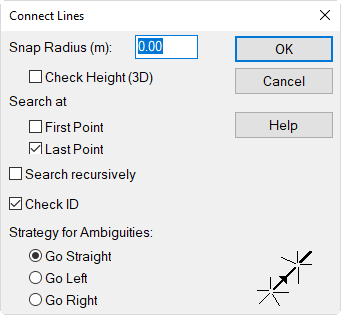
Dialog options
Snap Radius
Enter the radius of the circle within which a connection point will be searched. This snap radius is the maximum distance between the final points to be connected.
Check Height
With this option activated, the snap radius will refer to the 3D distance (i.e. using z coordinate as well) instead of just using the 2D distance (xy coordinates).
Search at first/last point
According to the options chosen, the search will occur in one or two directions.
Search recursively
With this option activated, the search - after having connected two lines - will continue as long as the given conditions are met.
Check ID
With this option activated only lines with identical ID will be connected.
Strategy for Ambiguities
Select which of several possible lines shall be connected.