The Main Window of CadnaR
Starting CadnaR

After starting CadnaR, the main window is displayed.
Main Window
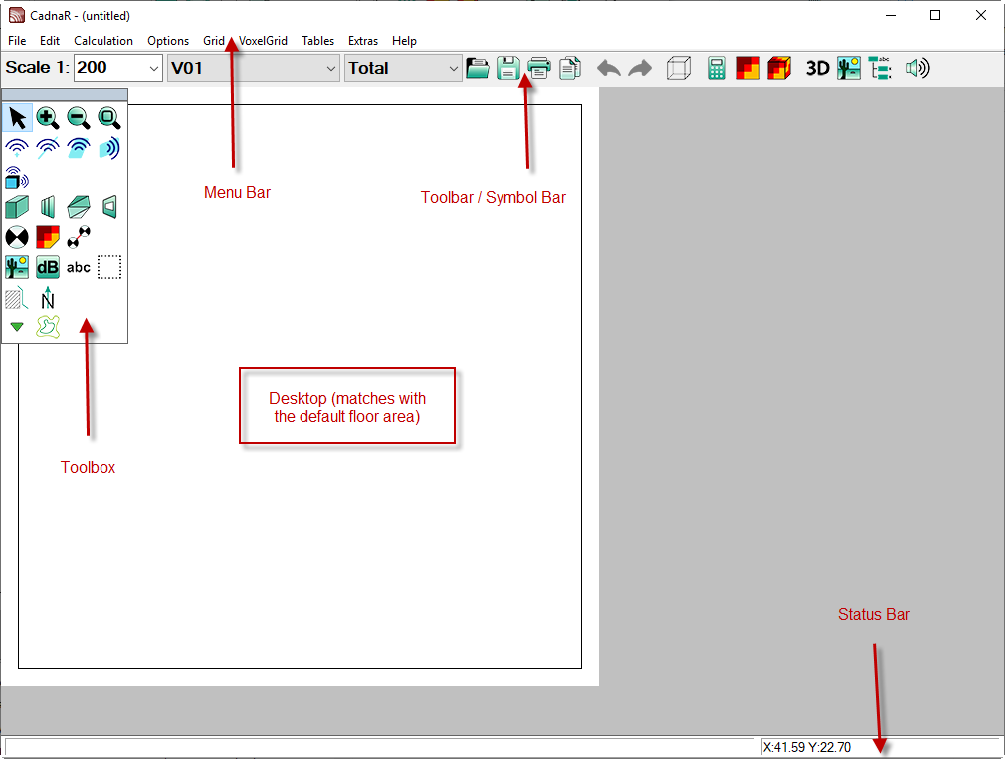
Desktop
The white area on the screen corresponds with the specified room floor area. In the default setting the room area is 30*30 m = 900 m² (see dialog Options|Room, see Room).
Menu Bar
From the menu bar commands are selected.
Symbol Bar
When clicking on a symbol on the symbol bar the corresponding function is immediately triggered. Symbols represent in general "hot keys" for menu commands. The meaning of a symbol is indicated by a tooltip when the mouse arrow is resting on it. The display of the symbol bar can be toggled using the command Show Symbol Bar on the Options menu.
Toolbox
The toolbox of CadnaR contains all symbols to enter objects or for activating certain actions. After selecting an object symbol an object of the selected type can be entered using the mouse via the screen.
Status Bar
The status bar is located at the bottom of the CadnaR main window.

- left part of the status bar:
- When a menu command is selected using the mouse keeping the left mouse button pressed a corresponding function note appears.
- Selecting an object or a group displays object type, name, ID or group pattern.
- During calculation the iteration number, particle number and sigma values of the last calculated iteration are displayed.
- After a calculation the required calculation time is displayed using the format hh\:mm:ss. When a file has been loaded the file version and the build-No. are displayed.
- right part of the status bar: When the mouse arrow is moved across the screen, the xy coordinates are displayed and (after a calculation) the noise level or the value of the selected room acoustical parameter at the grid point marked by the arrowhead (V for „value“).
The display of the status bar can be toggled using the command Show Status Bar on the Options menu.
Parallel Use of Mouse and Keyboard
On the main window, all objects can be inserted and edited by either using the mouse or the keyboard. By inserting a new object a new data set is created at the same time in the corresponding object table (Tables menu).