PlotDesigner - Cell Types
By default, a single page is shown in the cell tree containing the plan, several containers and cells. This first page can not be deleted, the content of which, however, can.
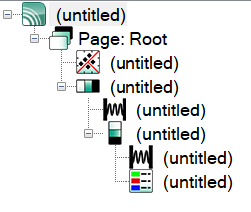
Default cell tree structure
Container
The alignment of cells - side by side (in x direction), above each other (in y direction), overlapping (in z-direction) or free positionable - is specified by the so-called containers which accommodate the other cell types like the „Plan cell“ or „3D cell“. Therefore, a container must exist before other cell types can be inserted into it.
x, y, z container
By these types of containers the alignment of cells inside the container are defined in a fixed way. All cells within a container having to share the available space. To insert a cell, select a container or a cell inside a container cell and select the new cell type from the toolbar.
Free positionable container
With this type of container the position of each cell within the container can be freely defined using the mouse. Click with the mouse inside a cell (not on the cells‘s border), hold down the mouse button and drag the cell to the new location. Cells can be moved within the container boundaries or being scaled by dragging the respective corner/border of the cell.
Note
When using the freely positionable container it is strongly recommended that the page size is defined at the start of the design procedure and stay with it afterwards.
Cell Types
Plan Cell

The plan cell accommodates the CadnaR graphics which is displayed immediately after inserting this type of cell. Which part of the plan is displayed depends on the settings in the Cell Properties dialog.
3D Cell

The 3D cell displays a shaded 3D-Special-View based on a camera line or as wire-frame view. The auxiliary polygons - used as camera lines - must have a name in order to be selectable on the Cell Properties dialog.
Text Cell

The text cell contains may contain individual text or even keywords to generate automatic printouts, for example #(Scale) displaying the scale of the graphics.
In a new text cell the default text „abc“ is displayed. There is no restriction regarding the text’s length. For word wrapping use the RETURN key.
Symbol Cell

The symbol cell may contain CadnaR specific symbols, like a North arrow, a grid caption, or symbols stored the local library of symbol’s (see Symbols (2D) and 3D-Symbols).
With several plan cells on a single page, the North arrow symbol is taken automatically from the first plan cell of the current page provided the option „Get from Plan Cell“ is activated with no plan ID selected.
Bitmap Cell

The bitmap cell displays images using bitmap formats such as TIF, BMP, JPEG, PCX, PNG etc.
Caption Cell

This type of cell serves to display the caption for grid, objects or types of land use.
Diagram Cell

This type of cell allows displaying diagrams like e.g. spatially averaged reverberation times.
Table Cell

The table cell is a special container cell that facilitates the generation of tables in PlotDesigner.
After clicking the table cell symbol on the toolbar a dialog is displayed enabling to enter the number of table rows and columns:
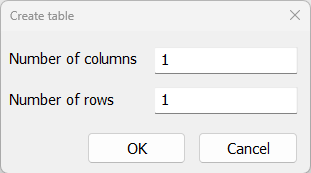
All generated cells have the same dimension (for width and height) applying option „% of parent“ as a standard size which means that multiple lines of text can be entered into a text cell of the table, without breaking the table formatting.
Macro Cell

The macro cell is actually not necessary in PlotDesigner, but it offers to make use of so-called keywords.
Empty Cell

An empty cell is a cell having no input. When inserting an empty cell into a container, that cell will occupy by default the entire space in the container, provided it is this the only cell in the container. By inserting other cells into this container, all present cells must share the available space. The rules on how these cells share the available space depends on the specified dimensions and the container type (i.e. side-by-side, above each other or overlapping). In case a specific type of cell - for example, a text cell - shall not use the entire space available, an empty cell can be inserted causing the text cell to be „pushed“ to the desired location.
Regarding the Cell Properties dialog see PlotDesigner - Cell Properties.