Selecting Objects
Selecting Edit Mode

Click this button to switch to the edit mode. The edit mode symbol in the toolbox is inverted upon selection. Now, the object to be edited is marked by selecting with the mouse.
Selecting a single object
Select a single object by clicking onto its border with the left or right mouse button. Clicking with the right mouse button opens the object's context menu offering further commands applicable to this object. Double-clicking on a objects with left mouse button opens corresponding object dialog to enter the acoustical data. The selected object is colored in cyan in the 2D view and the 3D view. In the 2D view there also are additional markers for the individual points of the polygon (or of a square surrounding point objects).
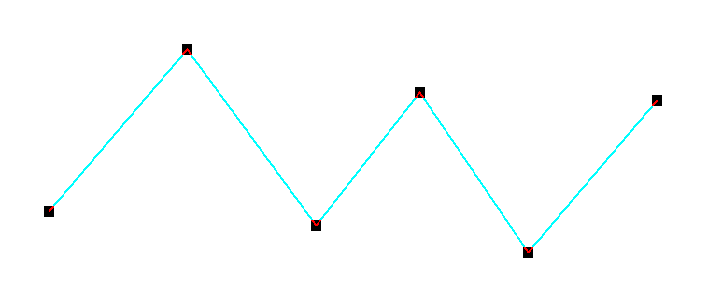 Appearance of a single selected object in 2D view |
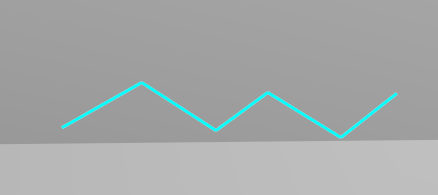 Appearance of a single selected object in 3D view |
Multiselection, selecting multiple objects
By dragging a frame with the right mouse button pressed, several objects can be selected at the same time. The objects in the multi-selection are colored purple and surrounded by a cyan frame..
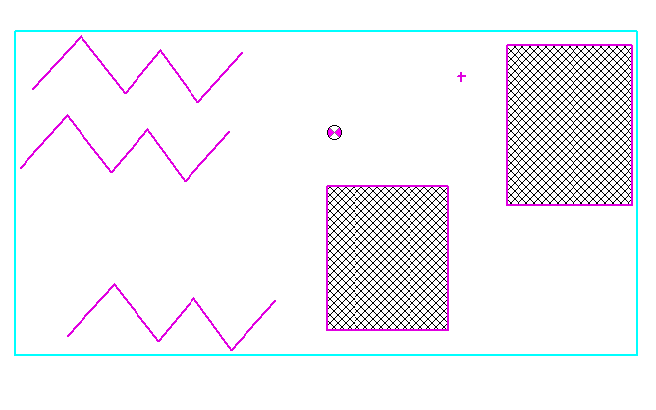 Appearance of a multiselction in 2D view |
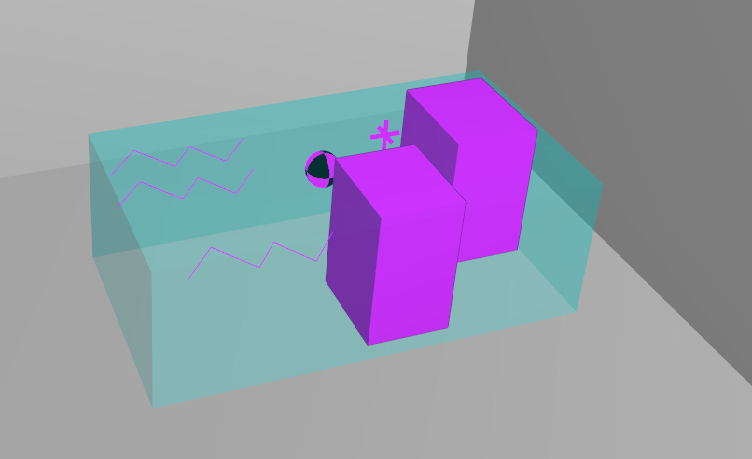 Appearance of a multiselection in 3D view |
Creating amultiselection
Draw frame with right mouse button in 2D view (keep right mouse button pressed while drawing, release creates multiselection). Dragging direction is decisive for objects on the edge of the frame:
- from left to right: Objects on the edge of the frame are not included in multiselection. Only objects completely enclosed by the frame are selected.
- from right to left: Objects on the edge of the frame are selected as well.
CTRL+A adds all objects to the multiselection.
Multiselection and Object Appearance
Note
The above actions select any objects for which the "Show Object Type" checkbox is set in the Appearance dialog (see Appearance). Accordingly, deactivated objects can also be part of the multiselection, provided they are also displayed (e.g. as dashed lines as in the default display settings).
Remove multiselection
The deselection is automatically triggered by various actions, e.g. right mouse click on a free area in the 2D view.
Multiselection,Adding and removing objects, invert selection
If a multiselection is already present, the following actions can be performed while holding down the CTRL key:
- Drawing a further frame with right mouse button in 2D-display inverts the selection existing within this frame. I.e.: If a frame is drawn over unselected objects, the objects within the frame are added to the existing multiselection. If there are already selected objects within the frame, they will be deselected.
- Clicking with the left mouse button and clicking with the right mouse button in the 2D view inverts the existing selection of the clicked object.
- In 3D view: double-click with the right mouse button to invert the existing selection.
Multiselection Object Attribute
A multisection can be created and edited via the corresponding object attribute MULTISEL (see Object Attributes). This can be used e.g. in object tables with "Modify objects|Modify attribute" and within conditions.
Multiselection and „Modify objects“
For „Modify objects“ there is an additional action "Multiselect" (see Multiselect).