Excel workbook (*.xlsx)
By this export format, the calculation results or the object tables are exported as an MS Excel file (XLSX format). For this, select this file type on the Save as dialog.
„Options“ button
Via the button „Options“ a template file *.xlsx can be selected or a selected template file can be edited.
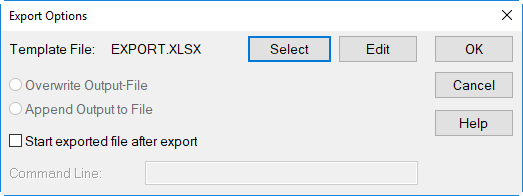
Dialog Export Options (XLSX Export)
For further dialogue options see the previous section.
Template Files for XLSX Export
Template files contain commands that control the printing or the export of calculation results. Keywords (see Keywords) are essential components of these commands.
The template for XLSX export is generated using MS-Excel and may contain all text formats available in MS-Excel and also CadnaR specific keywords. The advantage of a template file in XLSX format is that it allows for additional calculations within MS-Excel using the exported data. For example, penalties may be added to calculate an evaluation level.
Example
Path: Template Files\ template_export.xlsx
For a better understanding, open the referenced XLSX template file using MS-Excel. The following explanations refer to this file.
User-defined template files XLSX
User-defined tables are generated in MS-Excel from columns and rows. A single sheet in MS-Excel may contain several tables. These tables, however, must be arranged side by side, but not above each other.
The following rules apply:
- The table header can contain any kind of text. Keywords (see Keywords) may be used in the table‘s header or in cells outside (preferably above) of tables.
- The first row below the table header is the data row whose cells contain references to object attributes or use formulas.
-
The entire row of all data cells must be labeled using the MS-Excel feature „range“ or „named range“. The following structure is mandatory:
CUSTOM_TABLE_table_name
table_name denotes the specific keyword of an object table where the data results from (see Keywords for Tables & Print).
Example: CUSTOM_TABLE_IMM (for the „Receivers“ table)
Note
In case you are not familiar with the MS-Excel feature „range“ or „named range“ refer to the MS-Excel documentation or the MS-Excel Help.
- After having named the data row, references or formulas can be established for each cell of that range:
- A reference to an object attribute is created via the commentary feature of an MS-Excel cell (by clicking with the right mouse button into the cell and selecting the command „Comment“). This makes use of the table-specific keyword COL:# (COL, <keyword>, <fractional digits>)Further relevant points:
- The suffix <fractional digits> applies for numerical object attributes only (see Object Attributes). In case this suffix is missing the default format is used (mostly 1 fract. digit).
- The text formatting of each cell is retained on export.
- No further keywords are allowed in a cell!
- A reference to an object attribute is created via the commentary feature of an MS-Excel cell (by clicking with the right mouse button into the cell and selecting the command „Comment“). This makes use of the table-specific keyword COL:# (COL, <keyword>, <fractional digits>)Further relevant points:
-
Alternatively, a cell may contain a formula that is defined according to the MS-Excel specific rules. But, references can be established to the current line only, for example:
Sum=E8+F8+G8 is allowed
Sum=E8+F6+G8 is not allowed!
Note
If both, a reference and a formula are defined in a cell, only the reference is evaluated.
Example
Path: Template Files\ template_export.xlsx
Further, references to level values in variants can be established. First, open the sheet „Rcvr_V01V04“ in the same XLSX template file.
The references to levels or other parameters in variants follow the same rules as in other tables (for example in the Receiver table, see Object Attributes). For example:
- LPV01, LPV02 ...: A-weighted sound pressure in variant 1, 2 ...
- S_125V01, S_125V02 ...: linear octave band level at 125 Hz in variant 1, 2 ...
- STI_MV01, STI_MV02 ...: STI-male in variant 1, 2 ...
- T20_125V01, T20_125V02 ...: reverberation time T20 at 125 Hz in variant 1, 2...
Export Example
In the Template Files directory there is also a CadnaR file, besides the XLSX template file. You may test the XLSX export feature using the template file from above.
- Open the CadnaR file
Office_Excel.cni. - On the File|Export dialog, select the file type „Excel file (* .xlsx)“.
- Then click the „Options“ button.
- Select the template file
template_export.xlsxand click OK. - Enter a file name and start the export via button „Save“.
With the option „Start exported file after export“ activated, the exported data will automatically be displayed in MS-Excel. The export file contains as many sheets and tables as defined in the template file.