Point Source
Point sources are acoustic sources without a spatial extension. Point sources radiate to all sides as long as no special directivity was assigned.
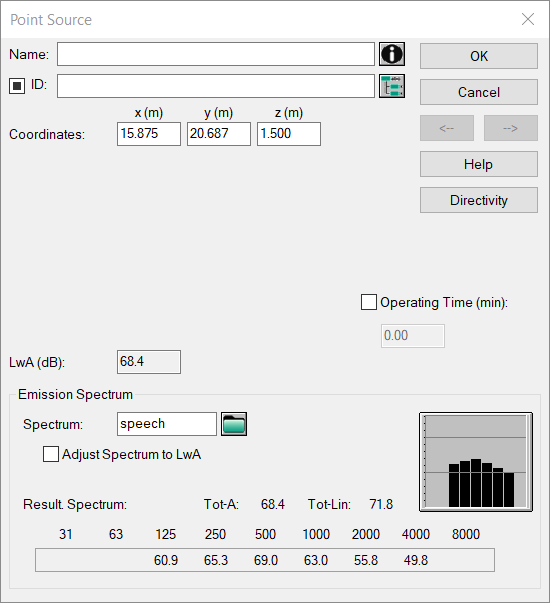
Dialog Point Source
Dialog options
- Name, ID, ObjectTree and Memo-Window see Common Input Data
- Coordinates x | y | z: coordinates referring to the origin
- Sound Power Level LwA (dB), operating time and dialog range „Emission Spectrum“: see Common Input Data - Sources
- Dialog range „Emission Spectrum“: see Common Input Data - Sources
- Button "Directivity": opens the dialog „Directivity“
Dialog Directivity
A directivity can be assigned to point sources. The required settings are specified on the dialog Directivity. The selected directivity pattern is always normalized to a sum level of zero in order not to alter the emitted sound power of the source.
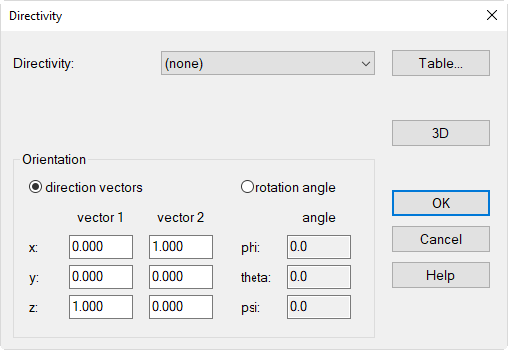
Selecting a directivity
All directivities defined in the table Directivity are selectable from the list box.
Button "Table"
This button offers the immediate access to the table Directivity where new directivity patterns can be defined (see Local/global Libraries).
Orientation
The select directivity pattern can be orientated in the three-dimensional space either using two direction vectors or three angles.
- direction vectors: Enter the xyz coordinates for the direction vector 1 (in +z direction) and for direction vector 2 (in +x direction), starting from the origin at (x, y, z) = (0, 0, 0). The two directivity vectors 1 and 2 must define a plane (i.e. they need to be not collinear).
-
rotation angle: Enter alternatively the rotation angles which the directivity vector forms with the respective coordinate axis:
- phi φ: angle of rotation of the directivity vector 2 (in the figure: x') about the +z axis (i.e. in the xy plane)
- theta ϑ: angle of rotation of the directivity vector 1 (in the figure: z') about the +z axis
- psi ψ: angle of rotation about the positive axis of the directivity vector 1 (in the figure: z ')
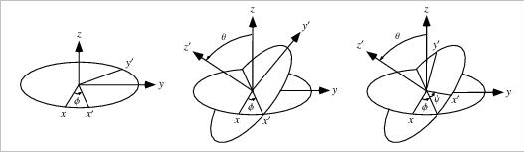
Angles phi φ, theta ϑ and psi ψ
Button "3D"
Clicking this button displays the selected directivity and its spatial orientation in a three-dimensional directivity diagram. On the dialog Directivity 3D-View, the directivity can be rotated around the center and zoomed using the mouse:
- rotation: hold the left mouse button pressed and move the mouse up/down or left/right
- zooming: hold the right mouse button pressed and move the mouse forwards/backwards
Moreover, the following edit features are available in order to orientate the directivity pattern:
| Keyboard and/or Mouse | Change in Orientation of the Directivity regarding ... |
| SHIFT + left mouse button + move mouse left/right | phi |
| SHIFT + left mouse button + move mouse up/down | theta |
| SHIFT + right mouse button + move mouse left/right | psi |
| B | change background color |
| F | automatic rotation about the z axis On/Off |
| F 11 | anti-aliasing On/Off |