Context Menu in Tables
Via the context menu in tables all or a selection of the following commands are available:
Edit
The dialog of the presently selected data set is opened for editing data.
Delete Dataset
The presently selected data set is delete (without confirmation prompt). The deletion can be undone (see Edit menu). When closing the object table, the object/s also get/s deleted from CadnaR's main window.
Delete all Datasets
Selecting the command Delete while holding down the CTRL key removes all datasets after a confirmation prompt.
Insert before
A new line above presently selected data set is inserted (alternatively: press INS key).
Insert after
A new line below presently selected data set is inserted.
Change Column
The dialog Change Column enables to alter values in all rows or in a range of rows of the selected table column.
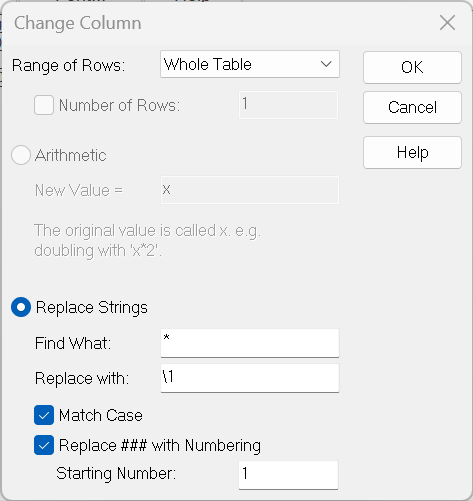
Values can be changed using an arithmetic expression (option "Arithmetic") or by a string operation (option "Replace Strings"). In case a column just contains figures, either an arithmetical operation or a string substitution is possible. In all other cases just the string substitution applies.
Dialog options
Range of Rows/Number of Rows
The change may refer to the entire table (default) or just to the rows below or above the present cursor position. When the range "Cursor up/downwards" is selected, the number of rows concerned can be entered. This number of rows includes the highlighted row.
Option "Arithmetic"
The present figure can be replaced by a new constant value or by a value generated using the existing value. For this change all operators are available (see Arithmetics). The letter "x" is the variable name for the original value.
Examples:
| x - 55 | difference between the column content and 55 |
| x + 2 | increases the column content by 2 |
| x ++ 50 | energetic summation of the original level with the level 50 dB |
| x -- 50 | subtraction of 50 from the original value |
Option "Replace String"
- input box "Find What": This box defines the search pattern. Only those column contents matching this pattern are included in the substitution operation. The asterisk sign (*, i.e. any string) and the question mark (?, i.e. a single character) can be used as wild card characters. In order to address and reuse the entire or parts of an existing string these string or string part is put into up parentheses.
| Element searched for | Operator | Example | finds |
| single character | ? | m?t | „mat“, „met“ |
| character string | * | l*t * | „lot“, „latent“, „last“all types of characters |
| one of the characters mentioned | [ ] | b[au]ll | „ball“, „bull“ |
| a single character in an alphabetical sequence | [-] | [m-k]street ((o)) |
„Nstreet“, „Ostreet“ but not „Bstreet“. The alphabetical sequence must be given in ascending order. |
| a single character except those mentioned in the brackets | [^] | [^g]ut | „but“, but not „gut“ |
| single-digit number 1..9 | [ ] | [7] | 7, but not 17 or 177 |
| multi-digit number | [ ] | [1][2][3] | 123, but not 121 |
| one of the numbers mentioned | [ ] | [123] | 1, 2 or 3, but not 11 or 12 |
| Logical relation | | | 100|200 | 100 or 200 |
| | | ab(c|de)f | abcf or abdef |
-
input box "Replace with": In this box an arbitrary string can be combined with the string parts addressed in "Find What" by parentheses. Here, \1 ... \n are used as placeholders for the string part in parentheses:
- \1 stands for the entire original string
- \2 stands for the first part of the string in parentheses
- \n stands for the (n-1)th part of the string in parentheses
Examples:
- original value: FBxyz_01
- input in box "Find What": (*)xyz_(*)
| input in box "Replace with " | Result |
| \1 | FBxyz_01 (i.e. the original string) |
| \2uvw_\3 | FBuvw_01 (i.e.. "xyz" is replaced with "uvw") |
| \3u\2 | 01uFB (i.e. sequence of string parts exchanged plus intermediate "u") |
- Match Case: If this option is activated, upper and lower case letters in box "find What" are relevant.
- Replace ### with Numbering: If this option is activated, each sharp (double cross) in box "Replace with" will be replaced by an increasing figures (number of # = number of digits). The starting number can be set in the respective field (default:1).
Sort
Via the dialog Sort the contents of the selected column can be sorted.
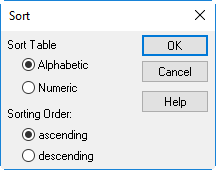
The following options are available:
Sort Table
- Alphabetic: The resulting sequence is in alphabetical order.
- Numeric: The resulting sequence is in numerical order.
Sorting Order
- ascending: After sorting the smallest values are at the top of the table.
- descending: After sorting the largest values are at the top of the table.
Filter
see Filtering Tables