Dialog options
There are several options available to restrict the number of objects concerned (e.g. range/activation status/object type). These options may be used individually or as a combination. The following options are available on the dialog Modify Objects.
Action
Select from this list box the action to be applied to all selected object types.
Range
The range is available only when the command Modify Objects was selected from the context menu of a closed polygon (e.g. a calculation area). Consequently, a geometrical condition is defined by the polygon. Otherwise, this part of the dialog appears in grey.
Available ranges:
- inside of the polygon: With this selection just objects laying completely inside of the closed polygon are concerned.
- outside of the polygon: With this selection just objects laying completely outside of the closed polygon are concerned.
- on the border of the polygon: With this selection just objects being intersected by the closed polygon are concerned.
With multiple range selections combined conditions apply.
Activation
Using the dialog range „Activation“ selects the objects affected by the selected action based on their respective activation status (see Common Input Data) or by their affiliation to a group (see Group Definition).
The available activation states are:
- only active: Only the activated objects the selected object type/s are affected.
- only inactive: Only the deactivated objects of the selected object type/s are affected.
-
List Box for Groups:
- (all): All objects of the selected object type/s are concerned by the action, regardless the group they belong to.
- List of Groups: Furthermore, all groups defined on the table Groups are selectable (see Groups). In this case, the action is applied only to the objects of the selected object type/s belonging to the selected group.
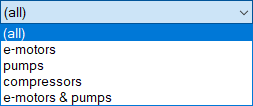
Example of a group list, "(all)" is selected
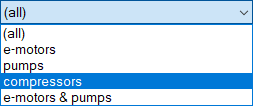
Example of a group list, group "Compressors" is selected
Condition
In addition, in order to restrict the selection of objects, a numerical condition or a string-based expression can be specified. For the specification of a condition all attributes of the object type selected are available. Provided a single object type is selected only, an attribute can be selected from the pop-up menu list (>>).
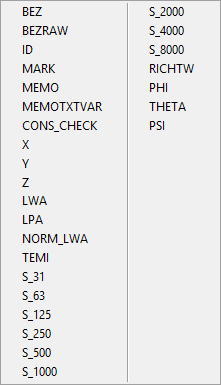
Attributes for Object „Point Source“ on the pop-up menu
Numerical Condition
This enables to define complex expressions using numerical and logical operators (see Arithmetics, Operators and Functions). The operation will be executed only if the condition is fulfilled (expression<>0). Examples:
| Object Type | Condition | concerned are... |
| Point Source | Z==5 | point sources with a height of exactly 5 m |
| Point Source | (Z>2)*(Z<5) | point sources with a height larger than 2 m AND smaller than 5 m |
| Point Source | LWA>=90 | point sources with PWL>=90 dBA |
| Point Source | (LWA<90)+(LWA>95) | point sources with PWL<90 dBA OR PWL>95 dBA |
| Point Source | (LWA>90)*(LWA<95) | point sources with PWL>90 dBA AND PWL<95 dBA |
String Expression
In string expressions defining a condition, the usual attribute names are used, with a dollar sign appended and by enclosing the entire string in quotation marks (e.g. ID$=="aaa" in order to address the ID as a string and to check for "aaa" string). The following operators and commands are available:
| Operator/Command | Testing |
| == | strings match, upper/lowercase are relevant |
| != | strings do not match, upper/lowercase are relevant |
| <, <=, >= | uses ASCII values to order the strings |
| match(string,regex) | test string against a regular expression (for example: match(ID$, "ab*") addressing all objects with ID starting by "ab"), upper/lowercase relevant |
| matchx(string, regex, ignore_case) | as with match, but with ignore_case!=0 upper/lowercase will be ignored, e.g. matchx(ID$,“aaa“,0) addresses all objects with ID=“aaa“, but not those with ID=“aAa“ |
Object Types
On the dialog range "Object Types" a single or multiple types of objects are selected the selected action is applied to. For multiple selections use the SHIFT key for selecting a range of object types, and the CTRL key for individual multiple selections.
The following global selection criteria are available:
- button "All": selects all types of objects.
- button "None": deselects all types of objects.
Button OK
Upon clicking the OK button - depending on the action selected - a further dialog is displayed. Enter the parameters as required and confirm by OK or by "All". The "Cancel" button cancels the entire action.