Mouse Buttons
"Click" means to press and release a mouse button once. "Double-click" means to rapidly press and release the left mouse button twice.
Click with Left Mouse Button
In order to select an option, execute a command, select an object, or activate an object icon, place the mouse pointer on that option, icon, command, or, in the graphic representation, on the border of an object or on the centre line of a line object and click the mouse button.
Usually, mouse actions always refer to the left button. Otherwise this will be mentioned. With a left-handed mouse or a specially configured mouse, use the appropriate button instead.
Multiple Selections in lists
CadnaR offers dialogs containing lists (for example: menu File|Print Report) where several items can be selected at the same time.
Selecting a single item
Click on the desired item using the left mouse button. Clicking a different item deselects the one selected before.
Selecting several consecutive item
Click the first item using the left mouse button, press and hold down SHIFT while clicking the last item to be selected. All items in between are highlighted and selected as well.
Selecting several items in an arbitrary sequence
Press and hold down the CTRL key while clicking the desired items. An item already selected will maintain to be selected. Clicking again while holding down the CTRL key deselects the respective item.
Double-click with Left Mouse Button
Double-clicking an existing object or a data record in a table opens the edit dialog where the relevant object parameters can be entered.
Click with Right Mouse Button
Clicking with the right mouse button means to rapidly press and release the right mouse button. Depending on which mode you are working in, using the right mouse button has two different effects.
- When using the mouse to insert an object into the CadnaR main window: - terminates the insertion mode for the object presently entered and - with a subsequent click with the right mouse button on the object the edit dialog opens.
- While in edit mode, clicking with the right mouse button on an existing object or a data set in a table, a context menu appears (see Context Menu).
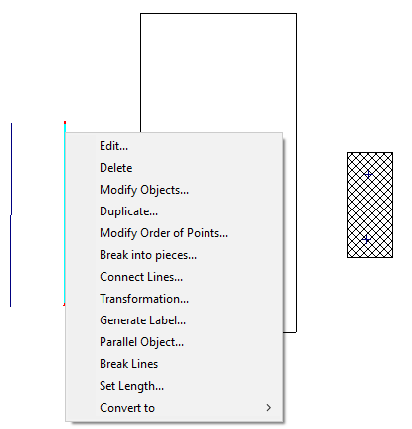
Context Menu (here for object „Line Source“)
Wheel Mouse
With a wheel mouse the wheel may be used to zoom in and out of the graphics quickly.