Transformation
The action „Transformation“ is available from the dialog Modify Object and from the context menu of objects.
Via the dialog Modify Objects several objects - also from different object types - can be transformed or even duplicated (via the option „Keep Original“). When selecting this command from the context menu just the object selected will be transformed or duplicated.
The following types of transformation are available:
- rotation + translation
- affine transformation
- general transformation
- interactive transformation
- unit conversion
Duplication by Transformation
With any kind of transformation the objects selected can and be duplicated at the same time, also for different object types. For this, the option „Keep Original“ is available on the lower left of each transformation dialog. With this option activated, duplicates of the objects selected are generated and subsequently transformed. The original objects are preserved in this case.

Option „Keep Original“
Transformation of the directivity vector
When applying a coordinate transformation to point sources with a directivity addressed the directivity vector is also transformed accordingly (see Directivities (local)).
Rotation + Translation
By this type of this transformation the coordinates of the pivot point, the angle of rotation and the translatoric shift are entered in x, y and z direction. Subsequently, the rotation is carried out first, followed by the translation in the three coordinate directions.
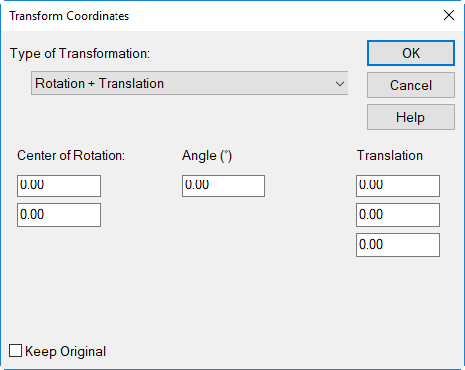
Dialog Coordinate Transformation fortransformation type „Rotation + Translation“
Example
An object shall be duplicated and the duplicate shall shifted applying a set-off of Δx=-10 m (i.e. shifting to the left) and by Δy=5 m (i.e. shifting upwards). This requires the following settings
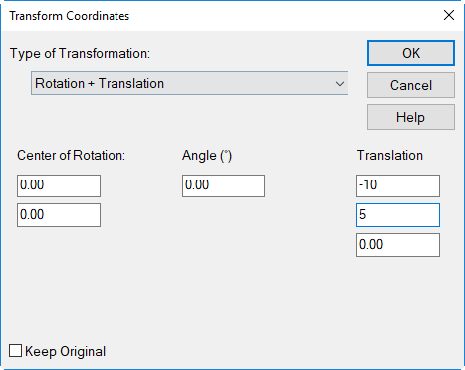
Note
The object types "box-type source", and "box-type obstacle" can be rotated in steps of 90 degrees only. This restriction also applies to object groups containing one of the aforementioned object types.
Affine Transformation
By entering the coefficients of the transformation matrix a rotation and/or a shifting occurs. The values of the transformation matrix result for a rotation of the objects about an angle ϕ around the origin from:
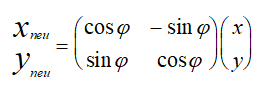
In addition, a translatoric shift in x, y or z direction can be specified.
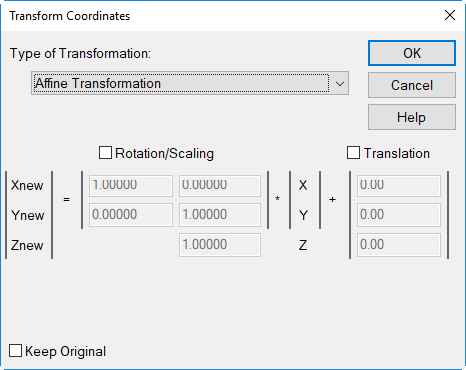
Dialog Coordinate Transformation for transformation type „Affine Transformation“
Note
The default matrix coefficients generate duplicates at the same location as the original.
Note
At present, the affine transformation is not available for the objects "area source", "box-type source" and "box-type obstacle" since these objects are always parallel to the coordinate axes. This restriction also applies to object groups containing one of the aforementioned object types.
General Transformation
With this type of transformation, new values for the three coordinates Xnew, Ynew and Znew can be defined by an algorithm based on the three existing coordinate values.
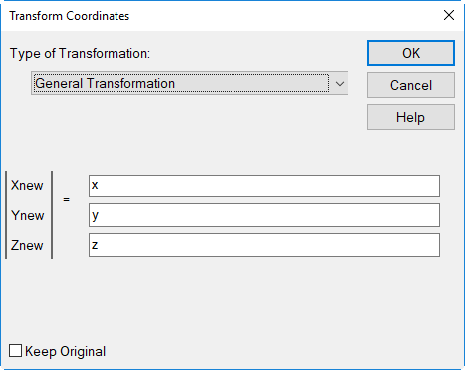
Dialog Coordinate Transformation fortransformation type „General Transformation“
Example
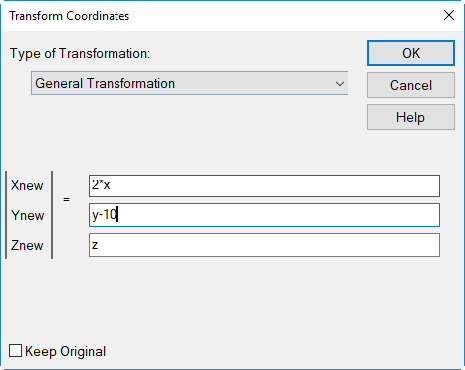
The following transformation generates a duplicate which is shifted to the double x-value to the right, and by 10 meters to the left.
Note
At present, the general transformation is not available for the objects "area source", "box-type source" and "box-type obstacle" since these objects are always parallel to the coordinate axes. This restriction also applies to object groups containing one of the aforementioned object types.
Interactive Transformation
By the interactive transformation objects can be duplicated or relocated using the mouse, i.e. without entering numerical values via the keyboard. In order to select objects all options on the dialog Modify Objects are available. By clicking in the white area on the screen all types of objects - as before - are addressed.
Note
The interactive transformation is not available via the context menu of individual objects.
Example
All box-type obstacles inside the polygon area (here a calculation area) shall be duplicated and relocated.
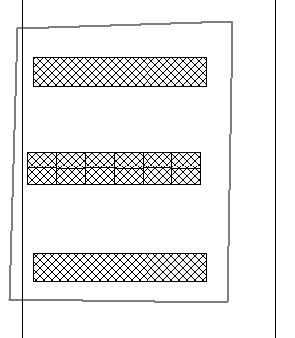
To achieve this proceed as follows:
- Select from the context menu of the polygon the command Modify Objects.
- Select the action „Transformation“, as range „Inside Polygon“ and the object type „Box-type Obstacle“ and click OK.
- In the subsequent dialog Coordinate Transformation select the type „Interactive Transformation“, check the option „Keep Original“ and click OK.
- The dialog Interactive Transformation is shown.
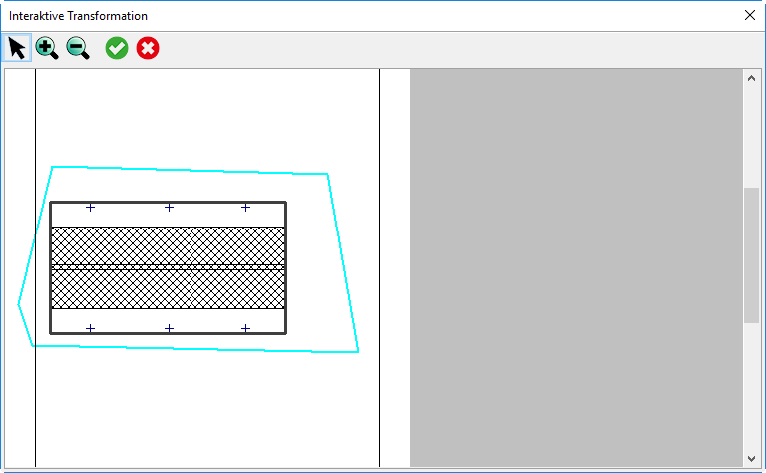
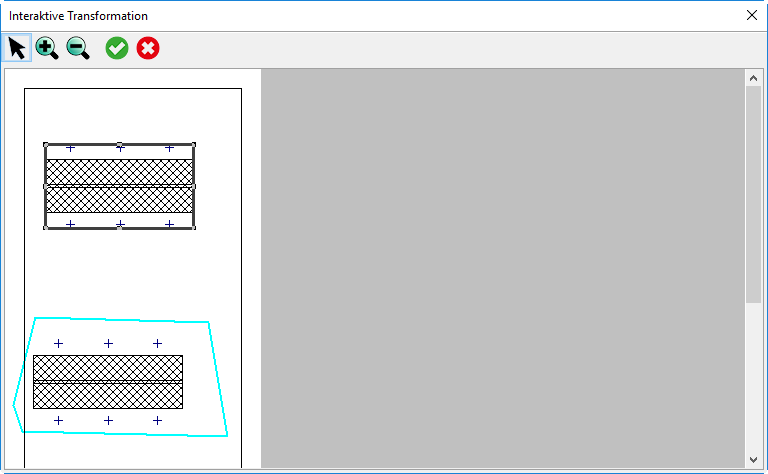
Dialog Interactive Transformation (objects under consideration with frame)
The frame displayed delimits all objects addressed by the selection and subjected to the selected action. The following dialog options are available:
| Symbol | Action |
 |
relocate/stretch/turn selected objects |
 |
zoom in |
 |
zoom out |
 |
confirm changes and close |
 |
revert changes and close |
-
To relocate the framed objects click with option
selected onto the frame and keep the left mouse button pressed. -
Now move the frame to the desired location and release the left mouse button.
By using zoom in/zoom out a smaller or larger project section will be displayed.
With just translatoric transformation the result will look like this:
Dialog Interactive Transformation (objects under consideration relocated)
- Close the dialog Interactive Transformation by OK.
After having confirmed the action by „All“ the selected objects will be transformed to the new location.
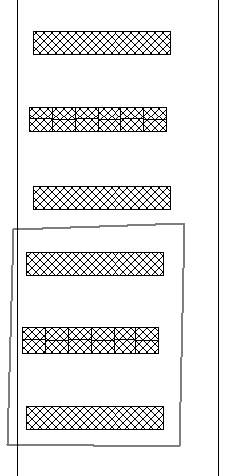
Interactively transformed box-type obstacles
Stretching/Turning of Objects
Furthermore, the following options are available:
- By dragging the frame by one of its polygon points the objects selected can be stretched.
- While keeping the ALT-button pressed the frame including the objects can be turned to a desired angle.
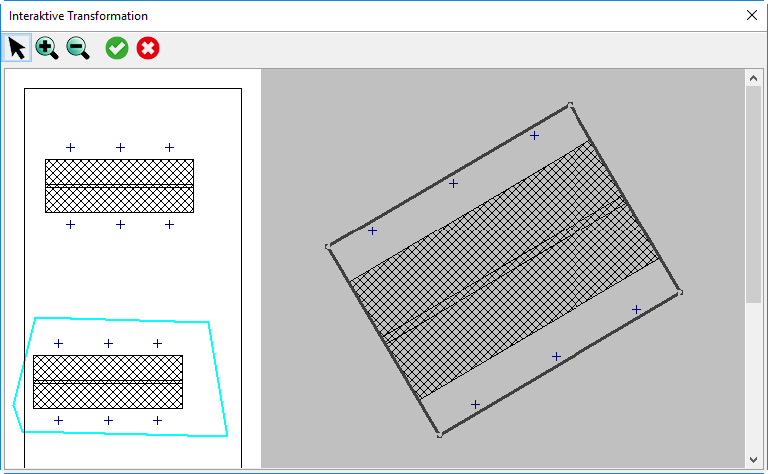
Duplicated box-type obstacles with stretching
Canceling the Transformation Action
To cancel an interactive transformation without any change close the dialog Interactive Transformation via the symbol „Close Dialog“ on the top right corner.
Unit Conversion
When using this transformation type, the source units and the destination units need to be specified.
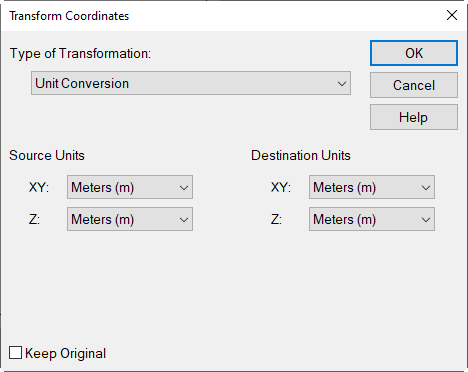
The source units are those units of length used in the existing file. The destination units are the units of length intended to receive after applying the conversion.
The following options are available for each list box:
- Meter (m)
- Feet (ft)
- Yard (yd)
- Miles (mi)
- Nautical miles (nmi)
- kilometer
Unit Conversion on Data Import
Via the “Options“ button in the import dialogs also the transformation type „Unit Conversion“ can be selected as well. This offers - for example - to convert geometry data in feet into meters during the import operation.
Please consider that the destination units for a unit conversion on import is always in meters (since the calculation basis and the CadnaR internal data has to be in meters).
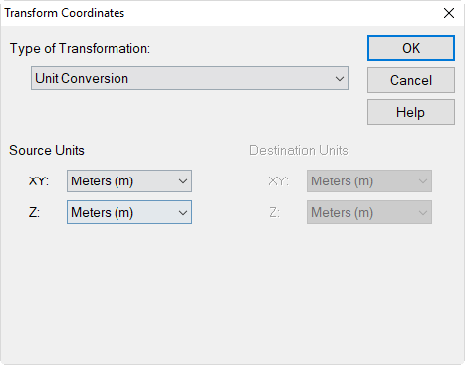
Import options, Dialog Transform Coordinates with type „Unit Conversion“ selected: Destination units are always in Meters