ASCII-Objects
The format „ASCII-Objects“ enables to import object geometry data from ASCII-files. Points, line-like and area-like polygons with an arbitrary number of coordinate points (xyz) can be imported. Objects which are defined in CadnaR as closed polygons are closed correctly on import.
The object geometry is addressed to the specified CadnaR object on import, i.e. not requiring any later conversion of object types. Besides the line the import to start with, the delimiter of columns and the column assignment to coordinates (xyz) can be freely defined.
For box-type obstacle, arranged parallel to the main axis x|y, import is possible with 2 points (pmin, pmax).
By using blank lines or by addressing an object-specific ID it is controlled whether several objects are generated by CadnaR on import or whether all imported points belong to a single object
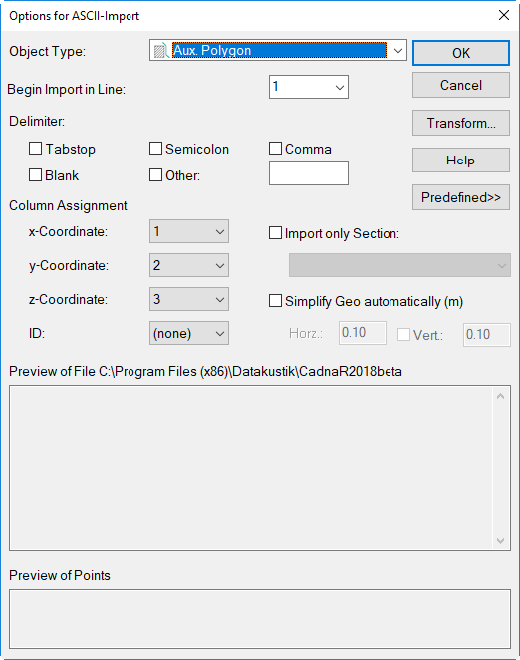
Dialog Options for ASCII-Import
Dialog options
Object Type
Select here the target object type. By default, the object type "Aux Polygon" is selected.
Begin Import in Line
When the ASCII file header contains lines with irrelevant data the line number at which the import starts can be specified (line No.s 1 to 20). So, the text file does not require to be reedited externally before import.
Delimiter
By default, TAB or SPACE are supposed to be the delimiters for data columns. When no delimiter is activated also several tab stops or several blanks in a sequence will not be interpreted as new columns. In case a single or several delimiters are activated each of those will be interpreted as a column delimiter. By selecting the option „Other“ an arbitrary character can be entered as column separator.
Column Assignment
Address the data columns to the coordinates (x,y,z) by using the three list boxes. An empty line marks separate objects as long as no ID is used. As delimiter for decimals the point has to be used. Up to 20 columns can be addressed.
Via the list box „ID“ - if available - a column can be assigned to the attribute ID (default setting "none"). If an ID is assigned upon import, any new ID being different from the previous ID generates a new object (see section „Examples“).
Import only Section
When this option is activated a section in the CadnaR target file can be specified. Only those objects will be imported which are inside of the section specified.
Simplify Geo automatically
In order to reduce the amount of data - in special with terrain data - the geometry can be simplified on import. After activation, enter a horizontal and - if any - a vertical distance. When the perpendicular from a point onto the connecting line between neighboring points is smaller than the entered value this point will be deleted.
Preview of File
This part of the dialog shows the first lines of the selected ASCII file. Use this preview as a help when configuring the import options.
Preview of Points
This part of the dialog shows a preview of the points applying the import options as selected. In conjunction with the file preview it can be judged in a comfortable manner whether the present settings result in a correct import of the data before starting the actual import.
Button „Transformation“
Via the button „Transformation“ the object’s coordinate data can be transformed on import (see Transformation).
Button „Predefined“
The button „Predefined“ offers to save the present settings on dialog Options for ASCII-Import. Select the command Save As from the context menu and enter a designation on dialog Save Settings.
The designations entered will be displayed when clicking on button „Predefined“. To select a setting click to it using the mouse. Via the sub-menu Delete the setting selected is deleted without confirmation prompt.