Vertical Grid
The "Vertical Grid" object is a polygon having a single segment. It is used to project the results of the voxel grid calculation (see Voxel Grid menu) onto a plane standing perpendicular on the ground.
When moving the vertical grid in the 2D-view, with the 3D-View opened in parallel (see 3D-View) the representation in 3D-View is immediately updated, not requiring a recalculation.
The existing vertical grids are listed in the object tables (see menu Tables|Other Objects). The sequence of the objects in the table determines the order of the calculation.
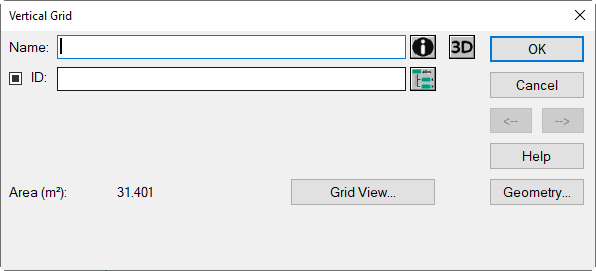
3D Grid dialog
Dialog options
- Name, ID, ObjectTree and Memo-Window see Common Input Data
- Button „3D“: see Common Input Data - Obstacles, no object color settings possible for the vertical grid.
- Area (m²): grid‘s area
- Button Geometry: see Common Input Data - Geometry
- Button „Grid View“: opens the Grid View dialog
Grid View dialog
The dialog consists of a specific toolbar and shows the following views of the current vertical grid:
- top: front view (right side, from 1st to last point),
- bottom: top-view inside the room (see Room).
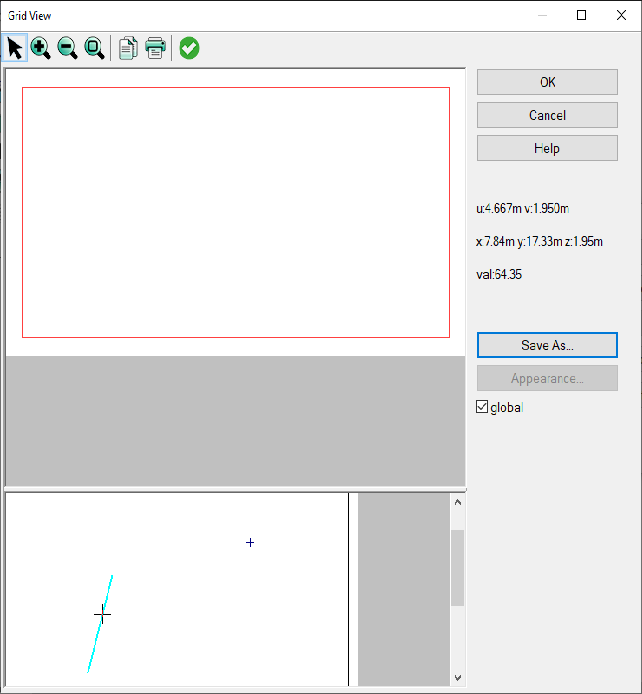
The scale can be changed via the toolbar (zoom +/-, zoom to limits).
Tool Bar on the Grid View
The following commands are available:
 |
Edit Mode |
 |
Zoom + |
 |
Zoom - |
 |
Zoom to limits |
 |
copy graphics to clipboard |
 |
opens the Print dialog |
 |
accepts changes and close dialog |
Local coordinate system u, v
In the right part of the dialog, the coordinates u (to the right) and v (up) of the local coordinate system are displayed. The origin (u, v) = (0, 0) is in the lower left corner of the front view (minimum of the zmin coordinates of both polygon points).
In addition, the global coordinates x, y, z are displayed below, which correspond to the data displayed on the Geometry dialog. The "val" field shows the level value (in dB) at the mouse pointer position.
Coordinated display of the mouse pointer position
When moving the mouse pointer in the front view, CadnaR shows its position at the corresponding point in the top view. This feature can be used to assess the position of the mouse pointer in the uv-plane.
"Save as" button
Via this button the grid values can be saved in the following formats: *.rst, ASCII (*.txt, *.dat, *.csv).
"Appearance" button
The option “global” is activated by default. In this case, the settings of the grid appearance (see Grid Appearance) are used for the current vertical grid.
After deactivating the “global” option, the grid display for this vertical grid can be edited via the “Appearance” button.
Vertical Grid in 3D-View
With respect to data handling, the data displayed on a vertical grid represent a section of the spatial voxel grid. Therefore, a vertical grid displayed on the 3D-View dialog is immediately updated after moving its position or changing its size in the 2D view. Thus, it does not require to recalculate.
Example
parallel display of the 2D room view (floor plan) and the 3D view:
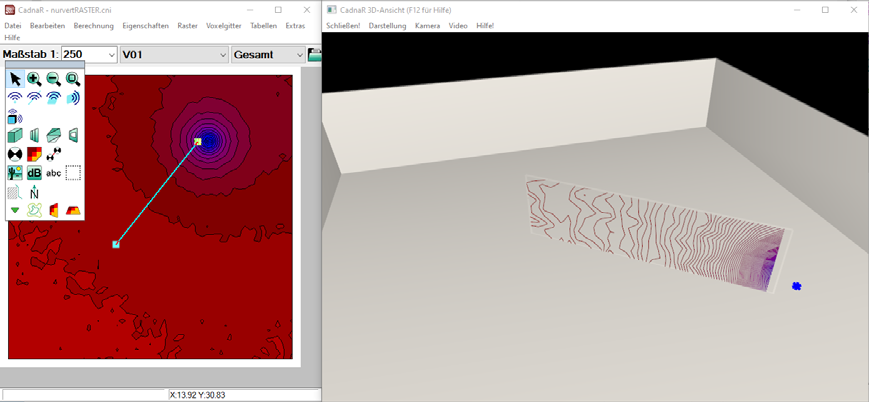 |
vertical grid in 2D and 3D view |
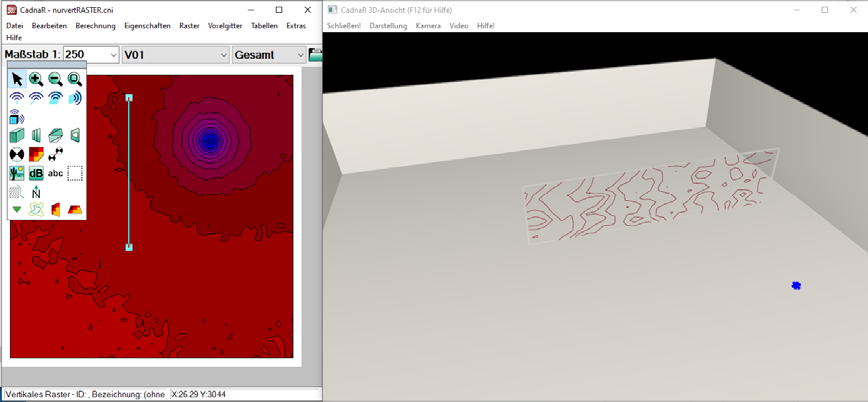 |
After moving a polygon point of the vertical grid in the 2D view: The 3D view is updated immediately. |