Text Box
The text box is used to display arbitrary text. Select the object and draw a rectangle. To edit the text box double-click (in edit mode) or click with the right mouse button (in input mode) onto its border. The text box may have a frame or not. The size of the box, the font type and font size can be defined. The text entered for the first text box will be kept for all subsequent text boxes.
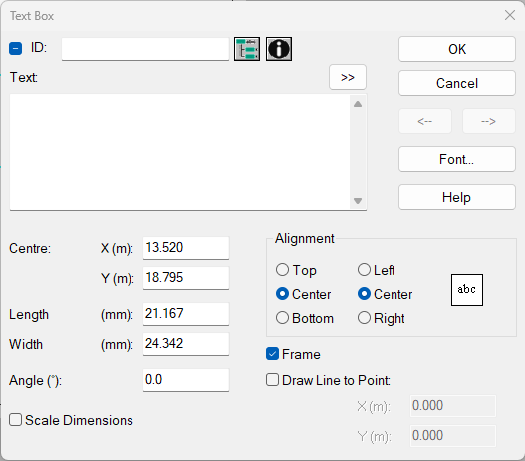
Dialog Text Box
Dialog options
- ID, ObjectTree and Memo-Window see Common Input Data
- Double Arrow (>>): gives access to pre-defined text based on keywords.
- box „Text“: Enter here the text to be displayed. Generate new lines by pressing the RETURN key. Up to 30.000 characters can be entered.
- Centre and Length/Width: xy coordinates of the center of the level box, length and width (m)
- Angle: The input of a value in degree causes a rotation of the level box around its center related to the x-axis. Positive (counter-clockwise rotation) and negative values (clockwise rotation) can be entered.
- Scale Dimensions: When activated the dimensions of the box and the font size change according to the selected scale. To fix the specific size of a box for a certain scale, first select this scale and change the settings of the box as required. These settings will be kept for all subsequent level boxes as well. In this case, just click with the mouse at further locations to set additional level boxes. Those boxes will have the same size as the original.
- Alignment: The desired alignment of the text within the frame is adjusted by selecting the corresponding option. The preview shows the orientation.
- Frame: When activated a frame is drawn. At the same time, the level box receive a white fill, i.e. objects located underneath will be covered by the level box. When this option is deactivated no frame is drawn and the object is transparent.
- Button "Font": enables to specify font type and font size etc.