Editing Objects graphically
Modes for editing objects
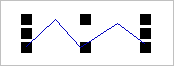
Two editing modes are available: the polygon point mode and the stretching mode. You can switch between the two modes by pressing the TAB key. By default, the polygon point mode is used.
Polygon Point Mode (input)
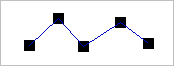
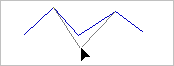
After having an selected an individual object (1), a distinct polygon point can be relocated to a new position using the mouse (2).
 |
 |
| (1) | (2) |
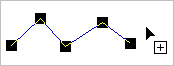
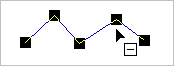
As long as the object is activated, an additional polygon point can be introduced by holding the CTRL key pressed (3). When holding pressed the key combination CTRL+SHIFT a polygon point can be deleted (4).
 |
 |
| (3) | (4) |
When moving a polygon point (2) and the ALT key is pressed at the same time, an object snap to the nearest polygon point of another, active object is performed.
Stretching Mode
In this mode (press the TAB key) no polygon points can be added, deleted, or relocated. The stretching mode is indicates by a rectangular frame drawn around the entire object (5).
 |
| (5) |
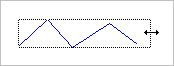
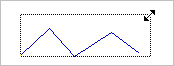
The entire activated object can be stretched or compressed using this mode. This may occur - in this example with stretching - in a single direction (6) or in two directions at the same time (7).
 |
 |
| (6) | (7) |
Furthermore, the size of the activated object can be modified in stretching mode using the SHIFT- and the CTRL key as modifier keys:
- SHIFT: symmetrical change of size
- CRTL: size change in distinct steps
- SHIFT+CTRL: symmetrical change of size in distinct steps
Marker Size
On the menu Options|Miscellaneous the size of the markers can be edited.
Graphic editing of groups (ObjectTree and Multiselection)
Many of the graphical editing possibilities explained in the following subchapters for single objects are also available for groups of objects (multiselection and ObjectTree-groups), see ObjectTree Graphic editing of groups (ObjectTree and Multiselection)