DWG (*.dwg)
Use this import filter to import DWG files (e.g. from AutoCAD or pCon.planner). Objects being convertible are converted to CadnaR objects. Not convertible objects are imported as auxiliary polygons.
Imported DWG data or object types
| DWG Data Type | Object Type |
| MATERIAL | MATERIAL |
| PRIMITIVE | POLYGON POLYLINE VERTEX_LIST |
| CONTAINER | DRAWING PLINE POLYLINE_COMTAINER POLYGON_CONTAINER CIRCLE CIRCULAR_ARC MESH SHELL |
The following object types are converted on import:
| DWG Object Type | Remarks |
| SOLID | Objects consisting of 8 points are - as far as possible - converted to a box-type obstacle. |
| 3DSOLID | as for SOLID |
| REGION | Objects consisting of 8 points are - as far as possible - converted to a box-type obstacle. Objects consisting of 4 points are evaluated with respect to identical points. With a vertical arrangement of the points a barrier is generated, with a horizontal arrangement a box-type obstacle with minimum z-extend is generated. |
| 3DFACE | as for REGION |
| VERTEX_MESH | as for REGION |
All other DWG object types cannot be imported to CadnaR.
Import Options
First, select by a single mouse click the DWG or DXF file to be imported and then click the "Options" button.
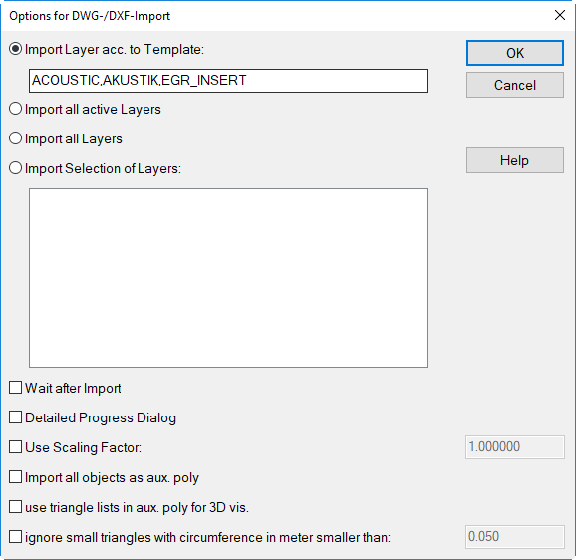
On this dialog, the following settings are available:
- Import Layer according to TemplateOnly those imported Layer corresponding to the input pattern.By default, the pattern expression "ACOUSTIC, ACOUSTIC, EGR_INSERT" is used to import data from pCon.Planner immediately on hold.
- Import all active LayersAll active layer imported.
- Import all LayersAll layers will get imported, irrespective whether active or inactive.
- Import Selection of LayersIn this case, layers to be imported can be selected from the list of existing layers. Active layers in the DWG/DXF file are designated by a "+" sign inactive layers by a "-" sign.
- Wait after ImportWhen enabled, the dialog of progress after the import process stops and thus allows to study the messages displayed. Close the dialog with "Close".
- Detailed Progress DialogAdditional information is displayed in the dialog showing the progress bar.
- Use Scaling FactorA translatoric transformation factor can be specified being use to transform the (x, y, z) object coordinates (default value: 1).
- Import all objects as Aux. PolysWhen enabled, objects are not converted to CadnaR specific objects, but are imported as auxiliary polygons.
- Use triangle lists in aux. polys for 3D-visualizationWhen enabled, contiguous triangles are imported as a single auxiliary polygon (so-called 'triangle list'), stored and displayed in the 3D view.
- Ignore small triangles with circumference in meter smaller thanWhen enabled, triangles with a circumference smaller than the entered value (m) are ignored.