Auralization
Via this dialog, audio listening files can be generated for up to two receivers using so-called „dry“ (i.e., with no reverberation) audio source files (file format *.wav) using the receiver-specific echogram (i.e., the room impulse response RIR). These audio files render audible the acoustical situation in a room based on the room fittings of the selected variant.
Note
Various WAV files for auralization can be found in the login area on www.datakustik.com.
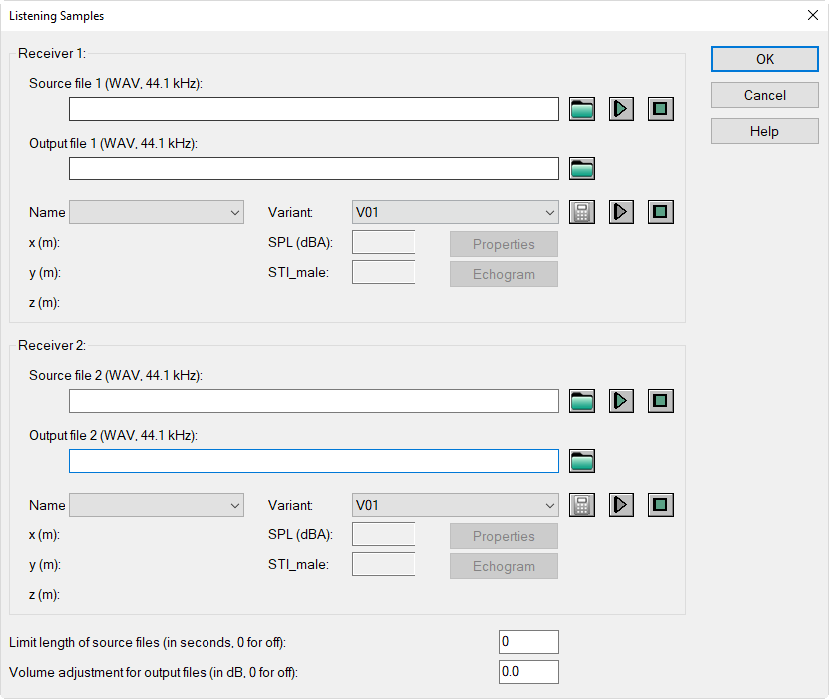
Dialog options
-
for receivers 1 and 2:
-
Source file 1 & 2 (WAV, 44.1 kHz sampling rate): Select a WAV file as the source file via the file selector symbol
 . This file should have been recorded without reverberation (i.e., in free field, say „dry“) in order to obtain as realistic a reproduction as possible. After closing the dialog, the file path is written to the input field. Buttons:
  plays the selected source file via the audio device selected in MS-Windows.
  stops playing the selected source file.
 -
Output file 1 & 2 (WAV, 44.1 kHz sampling rate): With no file path specified, the output files are written to the CadnaR file path by default (using the filename, see keyword #(File, dpn)_out_1.wav or #(File, dpn)_out_2.wav, see Keywords for Tables & Print). Click the file selector symbol
, select a different directory for the output file, and enter a filename. After closing the dialog, the file path is written to the input field.
-
-
Name: Select here the designation of a receiver point.
- Variant: Select a variant here (which may differ from the variant select on the CadnaR main dialog).
- x/y/z (m): coordinates of the selected receiver
- SPL (dBA): A-weighted sound pressure level at the selected receiver
- „Properties“ button: opens the object dialog of the selected receiver.
- STI_male: With the option „Calculate Echograms and Decay Curves ... for Receivers“ and the STI-male as quality measure selected (see "RIR-Evaluation" tab), this STI value will be displayed for the selected receiver.
- „Echogram“ button: With the option „Calculate Echograms and Decay Curves ... for Receivers“ selected (see "RIR-Evaluation" tab), clicking this button displays the calculated echogram for the selected variant.
-
buttons for generating and playing the output file 1 & 2:
 generates the output file by convolving the Fourier-transformed source file with the calculated room impulse response at that receiver.
- plays back the generated output file via the audio device selected in MS-Windows.
- stops playing back of the generated output file.
-
option „Limit length of source files (in seconds, 0 for off)“: With a source file having a large or unknown length, this value may limits the length and, thus, the size of the output file.However, if the selected source file is shorter than the limit entered here, the entire source file will be convolved.
- option „Volume adjustment for output files (in dB, 0 for off)“: This option enables to increase or decrease the level of the output file (available range from -20 to +20 dB).
Note
Note that the dynamic range of the available PC sound cards are limited which means that the output level cannot be increased without a limit. In case generated output files may overdrive, a warning message will be displayed.
Note
Furthermore, note that playing back distorted and overriding output files can damage the PC‘s audio output hardware (e.g., headphones or speakers) and can even impair your hearing ability!
Note
DataKustik will decline any liability for consequential damage to computer hardware, which might result from the execution of the procedures described in this chapter.
Note
Furthermore, DataKustik will decline any liability for hearing damage resulting from improper use of the auralization software applying the procedures described in this chapter.
A-B comparison
When having two output files generated, both can be toggled during playback. This features an A-B comparison between output files at receivers 1 and 2. The this end, click the play button of the receiver not currently playing.
This feature enables, for example,
- to compare two different receivers of the same variant with the same source sound file (e.g. comparing different positions in the same room setting), or
- to compare two different variants for the same receiver with the same source sound file (e.g. comparing the efficiency of acoustical treatments in a room), or
- to compare the same variant and the same receiver with different source sound files (e.g. comparing differences in the auditory impression of male and female speech, speech and music, etc.).