Miscellaneous
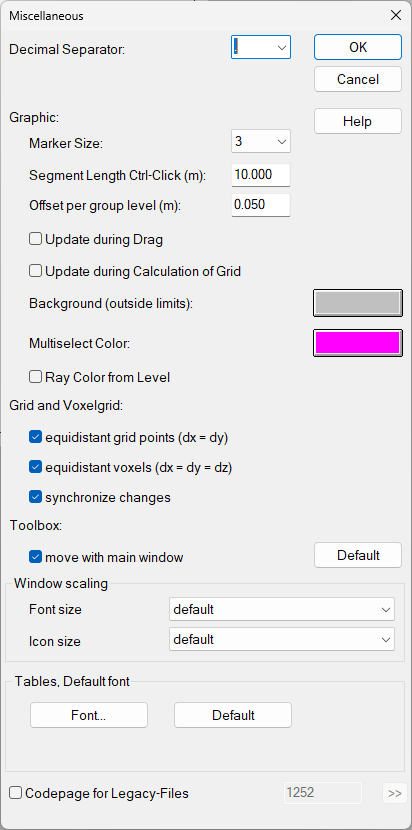
Decimal Separator
The point or the comma can be selected as a decimal separator which is used on object dialogs or in table cells. Please consider that is in input boxes for operators and functions the point has to used as decimal separator.
Graphic
- Marker Size: This value determines the size of the markers of an object.
- Segment Length: When entering line-like objects using the mouse a predefined segment length can be enforced by holding the CTRL key pressed. Enter the segment length to be used. The default value is 10 m.
- Offset per Group Level: This value determines the distance of the group frame per group level from the outer object frame. For example, with two group levels present, an offset of 1 m results in a horizontal and vertical distance of 2 m of the outer group framer from the outer object coordinates. With an offset of 0 (zero) no overlap results.
- Update during Drag: When clicking in a white area of the main window of CadnaR and dragging with the left mouse button pressed, a hand symbol appears on the screen. In this mode the graphic can be dragged to any location on the screen within the limits defined. With the option "Update during Drag" activated the graphic is permanently updated when moving. Otherwise, it will only get updated when releasing the mouse button.
- Updating during Calculation of Grid: With this option activated the grid is displayed on screen parallel to the progress of calculation.
- Background (outside limits): For the area outside the limits (i.e. the room's floor area) a color can be selected. Click the colored button to specify a color.
- Multiselect Color: The object color for the objects selected with a multiselection can be adjusted. Click the colored button to specify a color.
Ray Color from Level
This option is active per default. In this case, the ray’s color displayed on the plan view and on the 3D view (see 3D-View) results from the partial level using the color classes as defined on dialog Grid|Appearance (see Grid Appearance).
If this option is deactivated, the ray’s order (and not the partial level) determines its color. The color classes defined on dialog Grid|Appearance are assigned to the orders of reflection as follows:
- 1st color class (topmost class): color for direct paths, and
- 2nd to 12th color class: ray’s color from 1st to 11th order.
For further orders of rays, starting with the 12th order, the color map starts all over with the topmost color class.
Grid and Voxel Grid
- equidistant grid points (dx = dy), default On: By default, the spacing of grid points are equal in x and y directions. In this case, just the distance dx (m) can be entered on the Receiver Grid dialog (see Specification).
- equidistant voxels (dx = dy = dz), default On: By default, the spacing of the voxel grid are equal in the x, y and z directions. In this case, just the distance dx (m) can be entered in the Voxel Grid dialog (see Voxel Grid menu).
- synchronize changes (default: On): By default, a change in distance dx (m) for gird point results in a synchronous change of the voxel grid spacing, and vice versa.
Toolbox
move with main window (default: On): In this case, the toolbox is moved simultaneously with the software‘s main window, otherwise not.
Window Scaling
The following options are available for the font size on menus and in dialogs:
- smaller
- default
- larger
This setting applies to all dialogs except the system menus.
The following options are available for the icon size on the symbol bar and in the toolbox:
- smaller
- default
- larger
Changes become effective immediately, thus not requiring to restart CadnaR.
Tables, Default font
Fonts and font sizes for object tables and library tables can be set after klicking on the „Font..“ button. The „Default“ button resets them to default.
Codepage for Legacy-Files
For further information, see Transition to UTF-8.