Print Report
The object data and calculation results can be printed as tabulated reports from CadnaR.
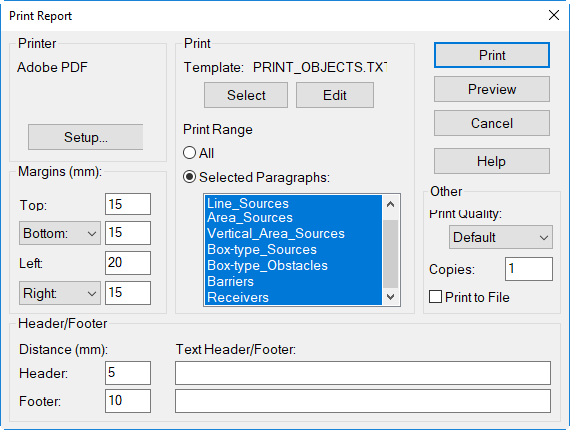
Dialog Print Report
Dialog options
- Printer: Select via the button "Setup" from the list of installed printers (and the paper size and the format).
-
Margins: The paper size can be defined either by the page margins and/or the height and/or the width. The page's margins (Top/Bottom and Left/Right) is the distance from limits of the printing area of the printer plus the spacing specified in the printing menu. The height is measured from the margin defined for top, the width from the margin defined for left.Example: top margin = 20 mm, height = 200 mm, paper size 220 mm.
-
Text Header/Footer: For both, header and footer, individual text can be entered here. The text will appear on each page. All keywords for printing are available (e.g. text font and size).Example: #(Font,,8) #(Datum), #Zeitdisplays the selected font, with size 8 pt, the actual date and time on the header or footer
-
Print: The file name of the presently selected template file is displayed being used by CadnaR to configure the print-out's design. The delivered template files can be modified by using keywords and saved with a new name or generated from scratch. Upon a new installation of CadnaR the delivered template files may be overwritten at an installation.
- button "Select": Via this button a template file for print is selected. The template has the file extension TXT. As template files for export have the same extension, it is useful to store both types of template files separately.
- button "Edit": Clicking this button enables to edit the presently selected template file and to save it with a new name.
-
Print Range
- All: With this option activated, the the entire report as specified by the selected template file will be printed via the selected printer or written to a file.
- Selected Paragraphs: With this option activated, on those paragraphs highlighted in the list by a mouse click will be printed. Clicking with the SHIFT key pressed enables to select a range of paragraphs, clicking holding the CTRL key pressed to select individual paragraphs.
-
Other
- Print Quality: The available print quality options depend on the selected printer. Select a quality from the list box.
- Copies: number of copies to be printed
- Print to File: When this option is activated the printing data will be saved to a file. After clicking OK you will be prompted for a file name.