Common Input Data
Name
An arbitrary string can be entered as an object name.
Note
The attribute „Name“ is not available for objects „Level Box“, „Text Box“ and „Section“.
ID
The ID is a string of up to 47 characters serving to identify an object. The limitation of 47 characters maximum includes the characters of the ID due to group generation using the ObjectTree, if any (see section „ObjectTree“ in this chapter).
Objects can be grouped according to different criteria by using the ID (see ObjectTree Add objects to the ObjectTree, Grouping objects). For each group the group-related total sound pressure level at the receiver points is calculated (see Groups). Objects belonging to groups can be activated and deactivated via these groups. Activated objects will be considered in the calculation, deactivated ones not. By default, deactivated objects are displayed by dashed grey lines in the graphics (see Appearance). Deactivated objects are not displayed in the 3D-View (see 3D-View).
The activation status, the ID, and the group definition are powerful tools for the controlling of projects and the handling of various project variants within a single project file (see Variants).
Rules for ID
An ID may contain only letters (A–Z, a–z), digits (0–9), or the underscore character (_). All other characters are not allowed. The first character must be a letter. These rules apply to the IDs of both objects and library entries.
As of CadnaR version 2026, the software enforces rule compliance by validating the user input. Upon opening files, the IDs are inspected and automatically adjusted when they do not comply with the specified rules. For further information, see here.
Activation Status
The check box next to the ID enables to specify three activation states for the object by clicking:
 |
check box with grey hook (i.e. neutral), ID black: This the activation status set by default. The object will be considered as being active as long it has not been deactivated via a group definition. The activation status can be changed via a group definition just for objects having this neutral status. Objects with this activation status will be considered in the calculation (i.e. sources radiate and obstacles provide a screening effect). |
 |
check box with grey hook, ID red: The object has been deactivated via a group definition. Objects with this activation status will not be considered in the calculation (i.e. sources do not radiate and obstacles do not provide a screening effect. |
 |
check box with black hook, ID black: The object is always be considered as active, even if this object were part of a deactivated group. Consequently, the string „ID“ is always displayed in black. Objects with this activation status will be considered in the calculation. |
 |
check box without hook, ID red: The object will always be considered as inactive, even if this object were be part of an activated group. Consequently, the string „ID“ is always displayed in red. Objects with this activation status will not be considered in the calculation. |
ObjectTree

Every object dialog offers the button „ObjectTree“. By clicking this symbol the dialog Select for the ObjectTree is displayed. In case an ObjectTree has been defined (see ObjectTree) the present object can be sorted into an object group by a mouse-click.
Memo-Window

The memo-window opens when clicking the memo-window symbol on an object dialog.
In the input box any text can be entered or text variables can be entered. The contents of the memo-window may be displayed in total (by the attribute MEMO) or just the value of a single text variable (by the attribute MEMOTXTVAR). The memo-window can contain up to 30,000 characters. When text is in the memo-window, the icon is blue, otherwise gray.
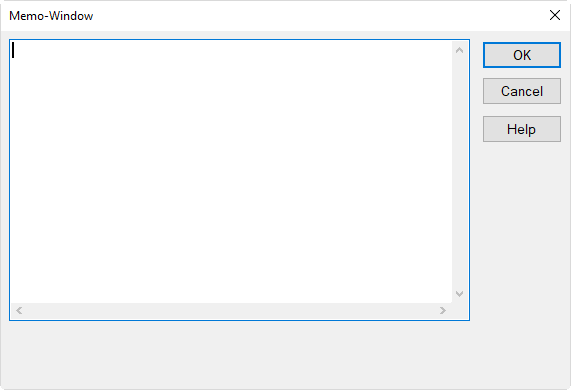
Dialog Memo-Window
Defining Text Variables
In order to define a memo variable write into a single line first its name, followed by an equal sign (without any space) and after the equal sign the value or text. The value of a text variable can be referred to by using the memo variable’s name.
For memo variables, the same rules apply as described at Rules for ID.
Example: Power=1000
The value of the text variable can be accessed - for example - when generating a label (see Generate Label).
Hyperlink
Hyperlinks can be inserted into the Memo-Window of an object dialog referring to any file, like picture, music, video files, or Internet URLs etc. Those links can be easily selected from the object’s context menu. To this end, enter the string variable HYPERLINK=File where „File“ stands for the entire file path including its filename, for example:
HYPERLINK=T:\Reports\2198\diagram.xls.
When forwarding a CadnaR file in conjunction with all linked files a relative path should be used. If necessary delete the path and name of drive from the hyperlink (just keeping the filename). CadnaR will locate those files provided they have been saved in the same directory as the CadnaR file.
Instead of entering the hyperlink via the keyboard a hyperlink can be established by Drag&Drop. Just drag the file into the box on the dialog Memo-Window. The path gets added automatically. On the object’s context menu the term „Hyperlink“ is displayed with a pull-down menu listing all linked files. Clicking the filename starts the linked software and opens the file. Alternatively, an alias name may be defined for a file (separated from its original filename by a vertical line. On the context menu, this alias name is displayed instead, for example:
HYPERLINK=diagram.xls|spectrum
displays „spectrum“ and not „diagram.xls“ on the context menu.
There may be several hyperlinks defined on the dialog Memo-Window. In this case, it is reasonable to name each hyperlink individually. This enables a global access via the dialog Modify Objects, Action „Modify Attribute“ (for attribute: MEMOTXTVAR, string variable: HYPERLINK1..n, where 1..n is a user-defined numbering).