Group Definition
This chapter describes how to generate group manually. Alternatively, the ObjectTree can be used for the generation of groups (see ObjectTree).
Expression
Whether or not an object belongs to a group is determined by the string „Expression“ string entered on the dialog Group. If the specified expression string matches the ID string of an object, this object belongs to that group.
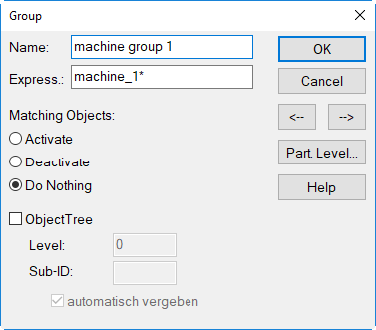
When defining an expression for a group the following wildcards can be used (see in the table below).
Example for Group Definition
Assume two sources having the following IDs:
-
source 1: ID = machine_102
-
source 2: ID = machine_105
| Expression | Explanation |
| machine* | source 1 and source 2 will be assigned to this group |
| machine_??5 | just source 2 will be assigned to this group |
| machine_102|machine_105 | source 1 and source 2 will be assigned to this group |
| *2 | just source 1 will be assigned to this group |
For complex projects the IDs should be defined already considering the intended grouping concept.
Example for the Hierarchy of Groups and their Partial Sum Level
The sequence of the groups in the list and their composition has an effect on the calculation of the partial sum-over-the-group levels shown on the list.
Note
Note that only those objects can be controlled by grouping whose ID has been switched to neutral (grey), i.e. which are neither activated, nor deactivated (see Common Input Data). Objects which have been explicitly activated or deactivated cannot be deactivated or activated by a group definition.
Example
Path: Examples/8_1/Groups_1.cni
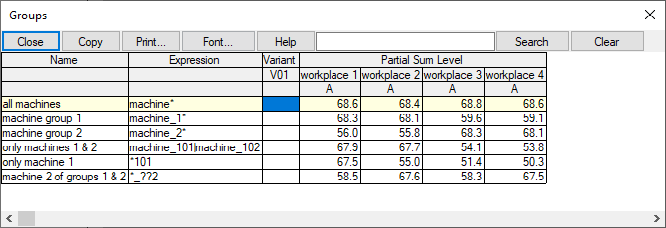
Six groups have been defined in the example above:
- The first group includes all machines.
- The second group includes only the sources of the machine group 1.
- The third group includes only includes only the sources of machine group 2.
- The fourth group includes the machines No. 1 and No. 2.
- The fifth group contains only the machine No. 1.
- The sixth group includes respectively the machine No. 2 of both machine groups 1 and 2.
In order to include all sources into those group definitions, none of the sources or groups shall be activated or deactivated upon calculation, but the option „Do nothing“ shall be selected for all groups. This ensures that all groups and sources are considered within the calculation. After calculation the partial sum levels per group are shown on table Groups for all active receiver points.
Example
Path: Examples/8_1/Groups_2.cni
Now, imagine the first group „all machines“ containing all sources would be deactivated for calculation by entering of a minus sign into the column „Variant V01“. Consequently, none of the succeeding groups would be included into the calculation as those groups represent a subset of the deactivated first group „all machines“.
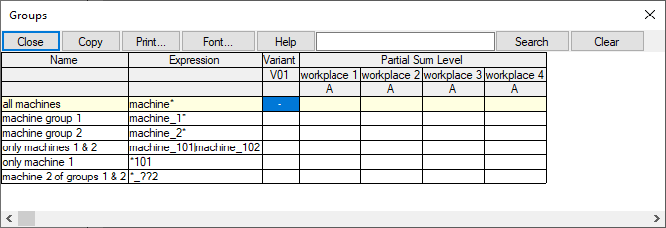
Group having expression „mach*“ is deactivated,all hierarchically succeeding groups are deactivated automatically
Even when activating one of the lower groups - by entering of a plus sign into the column „Variant V01“ - would have no effect either. Thus, the sequence of the groups is critical.
Example
Path: Examples/8_1/Groups_3.cni
First, the initial situation will be restored:
- Change the minus sign for the group with the expression „mach*“ by entering a blank into the column cell for „Variant V01“.
-
Close the table Groups and start the calculation at receivers by clicking the pocket calculator symbol
 .
. -
Deactivate the group having the expression „mach_101|mach_102“.
- Close the table Groups and restart the calculation at receivers.
- Again, open table Groups.
The succeeding group with the name „only machine 1“ was deactivated automatically since the pattern („expression“) is a subset of the group in front having the name „only machines 1 and 2“.
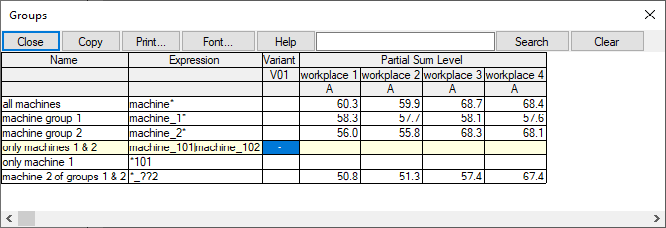
Group „only machine 1“ having no partial level because the precedinggroup has been deactivated which includes that group logically
Furthermore, the group „only machine 1“ cannot be activated afterwards by entering a plus sign into the column „Variant V01“. Check for this using the example file.
Example
Path: Examples/8_1/Groups_4.cni
In this case, the only way to activate this group is to move it to the first line of the table Group and to activate it by entering a plus sign (or by activating the respective source directly via its object dialog).
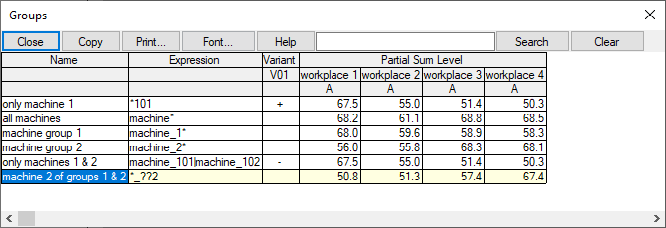
Group „only machine 1“ with partial level